Overview
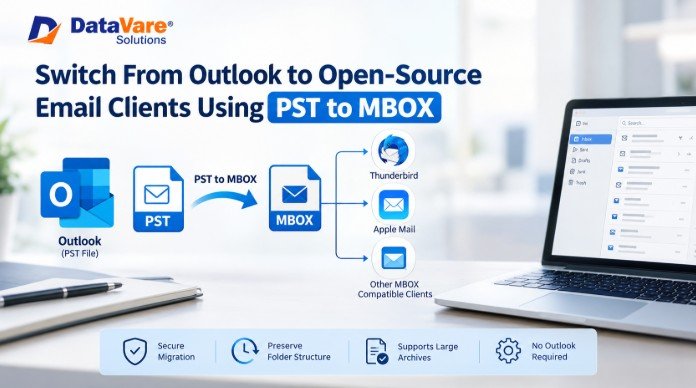
Moving away from Outlook doesn't always mean giving up years of email data. For IT teams, the archive is usually the hard part: messages, attachments, folders, contacts and other mailbox information stored inside Outlook data files. If you want to migrate mail archives from Thunderbird to Apple Mail, or move data to any other application working with MBOX, the data needs to be in a compatible format. Conversion of PST to MBOX provides a convenient way for such migration.
This method is particularly applicable to organizations looking to lessen their reliance on proprietary email platforms, or transfer old Outlook archives to open-source and cross-platform email clients. However, migration should be planned carefully as PST and MBOX are different in mailbox data handling.
What is PST and MBOX?
PST (Personal Storage Table): The mailbox data format of Microsoft. PST files store locally archived emails, attachments, calendars, contacts, tasks, and other mailbox information in Outlook. ANSI or Unicode format may be used to create PST files and they can be associated with different versions of Outlook.
MBOX: A common mailbox storage format supported by applications like Thunderbird, Apple Mail, and many Unix/Linux-based email clients. MBOX is used in various email environments instead of being tied to Microsoft Outlook.
This difference is important when an IT administrator wants to convert Outlook data file to MBOX to be used outside the Microsoft ecosystem.
Significance of PST to MBOX Conversion
The reason for the conversion is primarily compatibility. You can’t simply open a PST file as a native mailbox archive in Thunderbird or Apple Mail.
For example, an organization may be performing an Outlook to Thunderbird migration after choosing to use Thunderbird on selected workstations. Also, a Mac user may need to import PST into Apple Mail if he is converting from Outlook.
Conversion can also help when:
- An organization is migrating from Microsoft Outlook to an open-source mail client.
- Access archived Outlook mail on macOS or Linux.
- Users want to move PST to Mac Mail.
- IT teams are merging old Outlook archives.
- A user wants to migrate Outlook archive to Thunderbird without re-creating years of mailbox data.
- Users must still be able to access their historical email after Outlook is removed.
When to Convert Outlook Data?
Conversion makes sense if the target application does not support PST natively. It’s also useful when Outlook is no longer part of the standard software environment of the organization.
For instance, an IT department might decide to replace Outlook with Thunderbird on a number of systems. The old PST files would remain untouched, meaning users would still need Outlook to access historic messages. Once the archive is converted, the email data is available in the destination environment.
The same is true when moving an Outlook archive into Apple Mail or any other MBOX-compatible client.
Manual Method
There is no straightforward, built-in option in Outlook that exports an entire PST directly into an MBOX mailbox. Manual migration normally requires an intermediate application or mail server.
Method 1: Use an IMAP account as an intermediary
Another approach is to use an IMAP mailbox between Outlook and the destination client.
Steps:
- Open the PST file in Outlook.
- Create an IMAP email account in Outlook.
- Create folders in the IMAP mailbox to correspond to the Outlook folders.
- Move or copy required messages from PST folders to IMAP folders.
- Let Outlook synchronize the messages with the mail server.
- Install Thunderbird or other destination email client.
- Set up the same IMAP account in the destination application.
- Download or sync the required messages.
- If an offline MBOX archive is required, use the mailbox-storage options of the destination application.
This approach is feasible only for small mailboxes. For large archives, it is heavily restricted by email service provider (ESP) storage caps, daily upload quotas, and bandwidth throttling, which frequently trigger server bans or sync failures. Large attachments can slow it down even more.
It also does not directly export Outlook emails to MBOX file. Rather, the messages are routed through an intermediate mail account.
Method 2: Export and Re-import Individual Messages
Another manual solution is to open the PST in Outlook, and export or save messages one by one to import into the destination client if supported.
This might be fine for a handful of important emails, but it quickly gets unwieldy for larger archives. Other checks for folder structures, attachments, metadata, and message properties may be required.
Tool-Based Solution
A dedicated third-party converter can significantly reduce the number of intermediate steps for larger archives. While several utilities exist on the market (such as DataVare PST to MBOX Converter Expert), these tools are typically built to read ANSI and Unicode PST files and convert mailbox data into MBOX format without requiring an active Outlook installation. Regardless of the tool chosen, third-party parsers should always be tested on a small sample first to ensure complex metadata and folder hierarchies translate accurately.
How to Migrate PST to MBOX?
Download and Install: Download and install the DataVare PST to MBOX Converter application on your Windows PC.
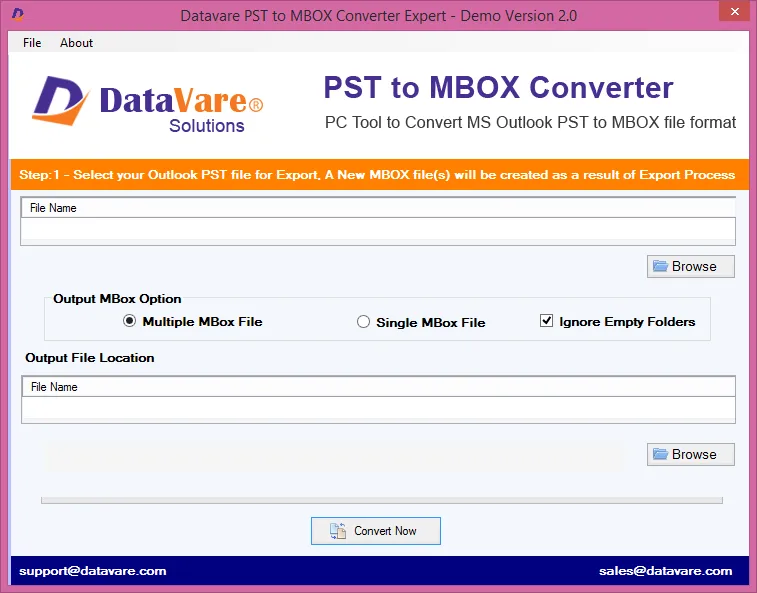
Browse PST File: Select and browse to locate the required Outlook PST file on your local storage.
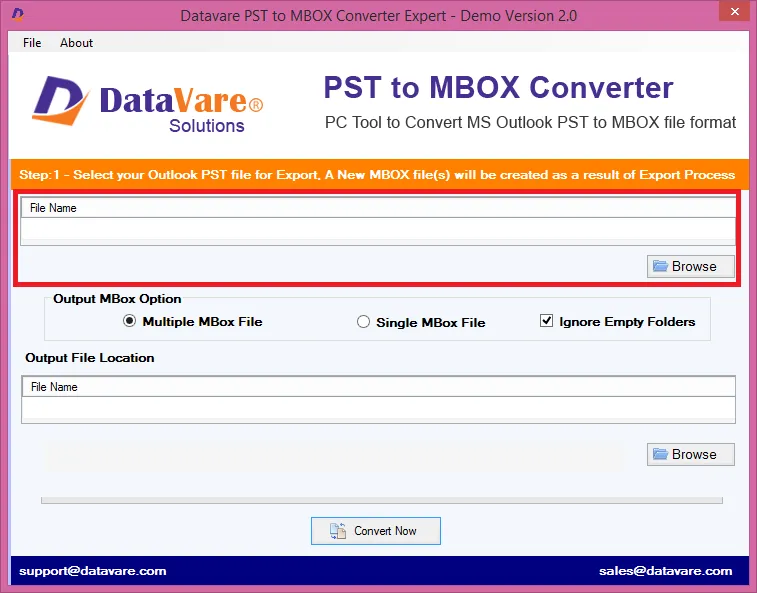
Configure Export Options: Choose your preferred output setting—either Create separate MBOX file for each folder or a Single MBOX file for the entire archive. Optionally, choose to delete empty folders.
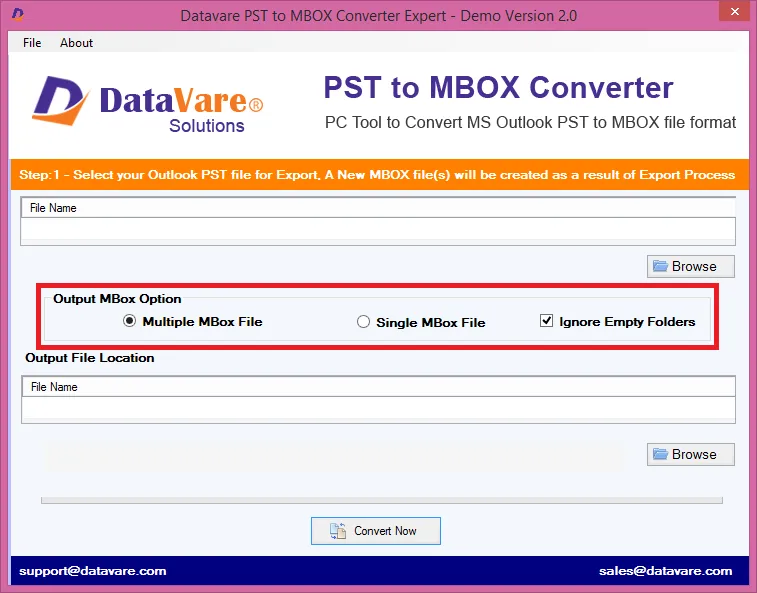
Set Target Location: Choose the destination path on your computer where you want to save the resulting MBOX files.
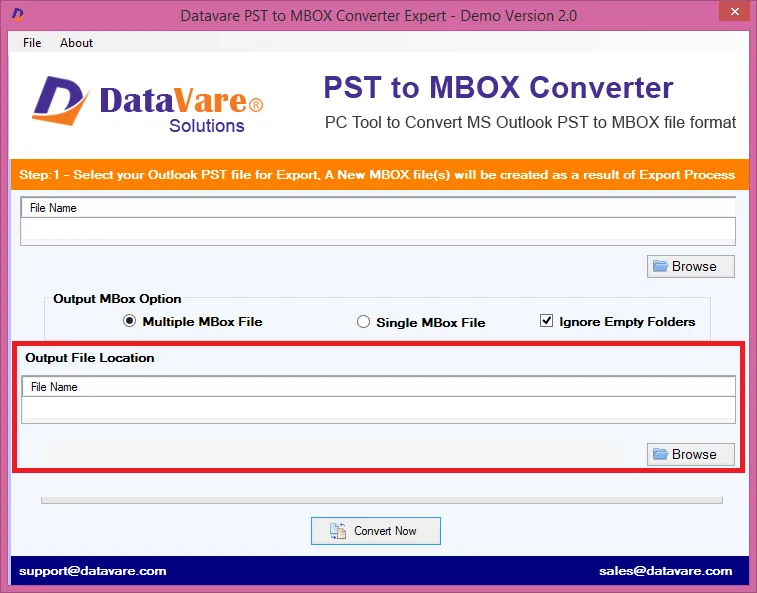
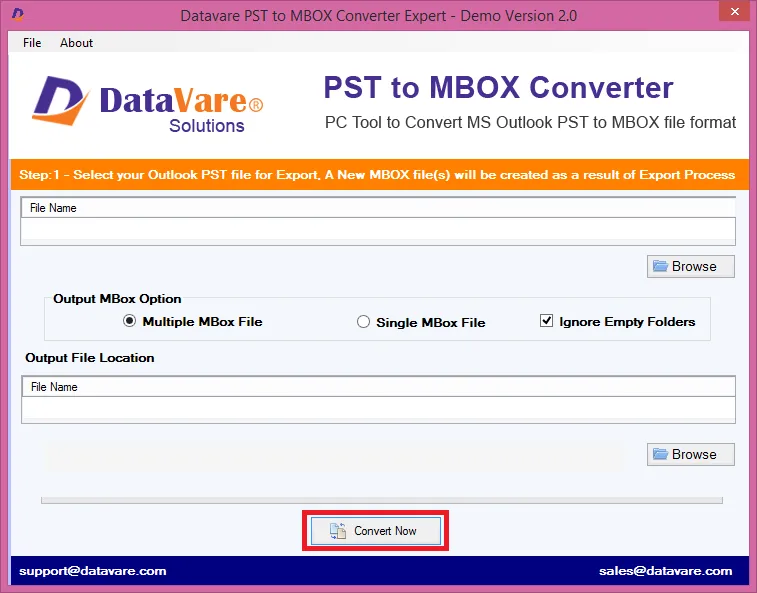
Run Conversion: Click Convert Now to start the export process. Verify that the conversion progress completes and check the output folder to ensure the MBOX files are successfully generated.
The software also offers the option to select the PST folders and not the entire archive which can be useful when an IT administrator needs to migrate the relevant data only.
Advantages of the Tool-Based Approach
A dedicated converter has several practical advantages:
Direct format conversion: PST data can be exported to MBOX without routing each message through an online mailbox.
Folder selection: IT administrators can convert the entire archive or specific folders.
Preview: Preview the PST folders available before conversion.
Support ANSI and Unicode: Support different kinds of PST files.
No Outlook dependency: The product documentation mentions that Outlook installation is not necessary.
Local output: Converted files can be saved to a location of choice.
Good for large archives: You don’t have to keep uploading messages to an IMAP server by processing a local PST.
Actual conversion time will depend on variables like PST size and system performance.
System Requirements
The above requirements are quite modest:
Processor: Any Pentium-class processor
Operating System: Windows 11, 10, 8.1, 8, 7, and other supported Windows OS versions
Memory: Min 512 MB
Free disk space: 100 MB for installation
The product page also lists Windows and Mac download options, and the documented conversion procedure describes Windows installation.
Best Practices
Before embarking on a mailbox migration, IT teams should:
- Backup original PST files.
- Check PST files for corruption or access problems.
- Backup folder structure prior to conversion.
- See how much storage is available on the destination computer.
- Test on a small PST before processing a large archive.
- After conversion, check the attachments and message formatting.
- Do not modify the original PST until the migrated data is verified.
- If the archive contains business or compliance-related correspondence, document the migration.
Pro-Tip: Always check if your PST file is password-protected or encrypted before starting the conversion. Encrypted PST files will frequently cause third-party parsers to fail or throw unexpected errors until passwords are removed within Outlook.
Suitable For
This migration technique is suitable for IT admins, businesses migrating to Thunderbird, Outlook users migrating to Apple Mail, users working in the Windows and Mac environment, and businesses with historical Outlook archives that do not want to keep Outlook installed.
This is particularly useful if you have a team that has a lot of folders or large PST files, because it would take forever to move each message by hand.
FAQs
1. Can I import PST files directly into Thunderbird?
Not a native mailbox of Thunderbird. Typically, the Outlook data has to be converted or passed along using some intermediary process.
2. Can I directly import PST to Apple Mail?
No. PST is a proprietary Microsoft format that Apple Mail does not support natively. However, Apple Mail can natively import MBOX files via its built-in import wizard. Therefore, PST files must first be converted into MBOX format using a third-party tool or intermediary method before Apple Mail can ingest them.
3. Does the converter need Microsoft Outlook?
The product documentation states that Outlook is not required in the conversion process.
4. Is it possible to convert selective Outlook folders?
Yes. The software has a provision to support custom conversion where users can choose specific PST folders.
5. Is it possible to generate separate MBOX files for different folders?
Yes. It is documented that you can either create several MBOX files for each of the individual folders or one MBOX file with all the folders.
6. Does size of PST affect conversion time?
Yes. Usually, larger PST files take more time to process. According to the product documentation, conversion speed depends on file size.
7. Is it possible to delete the original PST after conversion?
No. Save the converted mailbox and verify it before converting the original PST.
Conclusion
If you want to move from Outlook to Thunderbird, Apple Mail or another MBOX compatible application it is easier if you prepare your archive before you move. For a smaller collection you could do this manually using IMAP, but that adds more dependencies on sync and storage. Larger archives can be prepared for another email environment by easier PST to MBOX conversion.
The Migration is not complete when the progress bar hits 100%. Day one with the new client, the IT team should be actively verifying folder hierarchies, checking inline attachments and confirming sent items and sub-folders mapped correctly before discarding the original outlook data. A backup-first approach with proper validation enables organizations to export Outlook emails to MBOX and make older correspondence available in a new email environment without having to rebuild the archive from scratch.