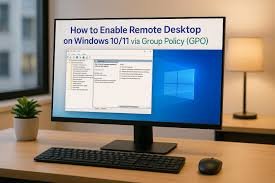
Remote work, online businesses, digital marketing, and cloud computing have completely transformed how people access computers and manage systems. Instead of being physically present in front of a machine, users can now log in remotely from anywhere in the world using secure remote access technologies. One of the most reliable and widely used methods for remote access on Windows systems is Remote Desktop Protocol (RDP).
If you run online projects, manage servers, perform SEO tasks, handle automation, or need uninterrupted access to powerful systems, enabling RDP on Windows 10 or Windows 11 is essential. Platforms like DigiRDP provide optimized remote desktop solutions that allow users to work efficiently, securely, and without geographical restrictions.
Why Enable RDP on Windows 10/11?
Enabling RDP allows you to connect to your Windows PC or server remotely over the internet or a private network. This is especially useful for:
- Running long processes without keeping your local machine on
- Managing business tools, software, or automation
- Accessing office computers from home
- Performing digital marketing, SEO, scraping, or automation tasks
- Using high-performance systems without buying expensive hardware
For entrepreneurs, marketers, and developers, remote access isn’t just a convenience it’s a productivity booster. If you ever plan to buy rdp, knowing how to enable and secure it properly ensures that you get maximum performance and safety from your setup.
Windows 10 and Windows 11 come with built-in RDP support, but it’s disabled by default for security reasons. With a few configuration steps, you can activate it safely and start working remotely within minutes.
Understanding RDP and How It Works
Remote Desktop Protocol (RDP) is a Microsoft-developed protocol that allows one computer (the client) to connect to another computer (the host) over a network. When connected, the remote user can see the desktop, control the mouse and keyboard, run applications, transfer files, and perform administrative tasks all as if physically sitting at the machine.
How RDP Works:
- The host machine runs the Remote Desktop service.
- The client uses a Remote Desktop application.
- The connection is established over port 3389 (by default).
- Authentication occurs using Windows credentials.
- A secure session begins, transmitting encrypted display and input data.
When you enable RDP on Windows 10/11, you essentially allow incoming connections from authorized users, giving them remote access to your system.
Types of RDP
Understanding the types of RDP helps you choose the right solution based on your use case, security needs, and performance expectations.
- Dedicated RDP
Dedicated RDP means you get a full remote desktop environment exclusively assigned to you. No one else shares system resources, ensuring maximum performance and privacy. This is ideal for business operations, automation, and resource-intensive tasks.
- Shared RDP
In shared RDP, multiple users access the same server. While it’s more affordable, resources are shared, which may affect performance. This option is suitable for light tasks or beginners.
- Admin RDP
Admin RDP is used mainly for system administration. It allows users to manage servers, install software, and control system configurations.
- Cloud RDP
Cloud-based RDP is hosted on cloud infrastructure such as AWS, Azure, or Google Cloud. It offers scalability, high uptime, and flexibility for modern businesses.
- Residential RDP
Residential RDP refers to remote desktops that use residential IP addresses instead of datacenter IPs. These are often used for web automation, SEO, scraping, social media management, and tasks where natural IP behavior is important.
Each type serves different needs, and selecting the right one depends on your project goals, workload, and compliance requirements.
Advantages of Using RDP
RDP offers numerous advantages for individuals, freelancers, startups, and enterprises alike.
- Remote Access Anytime, Anywhere
With RDP, your system is no longer tied to a physical location. You can work from home, a café, or while traveling, as long as you have internet access.
- Cost Efficiency
Instead of buying multiple high-end computers, you can use one powerful remote system to handle all tasks. This reduces hardware costs significantly.
- Centralized Management
All software, files, and tools are stored on one machine, making it easier to manage updates, backups, and security.
- Enhanced Security
RDP uses encrypted connections and authentication mechanisms, making remote access secure when configured properly.
- Improved Productivity
Long-running tasks can continue on remote machines even when your local system is off. This is especially useful for automation, data processing, and server management.
Benefits of Enabling RDP on Windows 10/11
Beyond the general advantages, enabling RDP on Windows 10/11 provides specific benefits tailored to modern users.
- Seamless Integration with Windows Ecosystem
RDP is built into Windows, meaning you don’t need third-party software. It integrates with Windows security policies, user accounts, and network settings.
- Support for Multiple Users
You can create multiple user accounts and grant remote access selectively, making it suitable for teams and organizations.
- Scalability
As your business grows, you can upgrade your RDP environment or add more users without changing your workflow.
- Better Resource Utilization
Remote systems often come with higher RAM, CPU, and storage configurations, enabling smoother performance for demanding tasks.
- Compliance and Audit ability
Windows RDP supports logging, auditing, and access control, which helps businesses meet compliance and security standards.
If you plan to rdp buy for professional use, enabling and configuring RDP properly ensures you get the full value of your investment.
System Requirements for RDP on Windows 10/11
Before enabling RDP, ensure your system meets the following requirements:
For the Host Machine:
- Windows 10 Pro, Enterprise, or Education (Home edition does not support hosting RDP by default)
- Windows 11 Pro, Enterprise, or Education
- Active internet or network connection
- Administrative privileges
- Firewall configured to allow RDP traffic
For the Client Machine:
- Any Windows, macOS, Linux, Android, or iOS device with an RDP client
- Stable internet connection
How to Enable RDP on Windows 10
Follow these steps to enable RDP on a Windows 10 system:
Step 1: Check Your Windows Edition
- Press Windows + I to open Settings.
- Go to System → About.
- Under Windows specifications, check your edition.
- If it says Windows 10 Home, you’ll need to upgrade to Pro or use third-party alternatives.
Step 2: Enable Remote Desktop
- Open Settings.
- Navigate to System → Remote Desktop.
- Toggle the Enable Remote Desktop switch to On.
- Click Confirm when prompted.
Step 3: Configure User Access
- On the same Remote Desktop page, click Select users that can remotely access this PC.
- Add the user accounts that should be allowed to connect.
Step 4: Allow RDP Through Firewall
- Open Control Panel → System and Security → Windows Defender Firewall.
- Click Allow an app or feature through Windows Defender Firewall.
- Ensure Remote Desktop is checked for both Private and Public networks.
Step 5: Note Your IP Address
- Open Command Prompt.
- Type ipconfig and press Enter.
- Note your IPv4 address this will be used by the client to connect.
How to Enable RDP on Windows 11
The process on Windows 11 is similar, with minor interface changes:
Step 1: Verify Windows Edition
- Open Settings.
- Go to System → About.
- Check your edition (must be Pro, Enterprise, or Education).
Step 2: Enable Remote Desktop
- Open Settings → System → Remote Desktop.
- Turn on Remote Desktop.
- Confirm the action.
Step 3: Add Authorized Users
- Click Remote Desktop users.
- Add the users who should have access.
Step 4: Configure Firewall
- Open Windows Security → Firewall & network protection.
- Ensure Remote Desktop is allowed through the firewall.
Step 5: Confirm Network Profile
Ensure your network profile is set to Private for better connectivity and security.
How to Connect to Your RDP
Once RDP is enabled, follow these steps to connect:
- On the client device, open the Remote Desktop Connection app.
- Enter the IP address or hostname of the host machine.
- Click Connect.
- Enter your Windows username and password.
- Click OK to start the session.
You’ll now see the remote desktop interface and can begin working.
How DigiRDP Enhances Your RDP Experience
DigiRDP offers optimized remote desktop environments tailored for performance, security, and reliability. Instead of configuring your own system from scratch, DigiRDP provides ready-to-use RDP solutions that save time and technical effort.
Key Benefits of Using DigiRDP:
- High-speed servers with minimal latency
- Secure authentication and encrypted connections
- Flexible plans based on usage needs
- Reliable uptime and customer support
- Easy scalability as your workload grows
For professionals who prefer convenience and reliability, DigiRDP simplifies the entire remote desktop experience while maintaining security and performance standards.
Security Best Practices for RDP
While RDP is powerful, improper configuration can expose your system to security risks. Follow these best practices:
- Use Strong Passwords
Ensure all user accounts have complex, unique passwords.
- Change the Default RDP Port
Instead of using port 3389, change it to a custom port to reduce automated attacks.
- Enable Network Level Authentication (NLA)
NLA requires authentication before a session is established, adding an extra layer of security.
- Use Firewall Rules
Limit RDP access to specific IP addresses whenever possible.
- Keep Windows Updated
Regular updates patch security vulnerabilities and improve system stability.
- Monitor Login Attempts
Enable logging and review failed login attempts regularly to detect suspicious activity.
Common Use Cases for RDP
RDP is used across various industries and professions:
Digital Marketing and SEO
Marketers use RDP to run tools, manage campaigns, scrape data, and perform SEO tasks without overloading local systems.
Software Development
Developers use RDP to test applications, deploy software, and manage servers remotely.
Business Operations
Companies use RDP to allow employees to access office systems from remote locations.
Data Processing and Automation
RDP enables continuous execution of scripts, bots, and automation workflows.
Education and Training
Institutions use RDP for virtual labs, remote teaching, and student access to specialized software.
Why Businesses Prefer RDP Solutions
Businesses prefer RDP because it offers:
- Centralized infrastructure
- Reduced IT maintenance costs
- Improved employee flexibility
- Enhanced security and compliance
- Scalability for growth
Instead of managing multiple physical machines, companies can deploy a centralized remote desktop infrastructure that supports their workforce efficiently.
Troubleshooting Common RDP Issues
Issue 1: Unable to Connect to Remote Desktop
Solution: Check firewall settings, verify IP address, ensure RDP is enabled, and confirm network connectivity.
Issue 2: “Remote Desktop Can’t Connect to the Remote Computer”
Solution: Ensure the host machine is powered on, connected to the network, and not in sleep mode.
Issue 3: Authentication Errors
Solution: Verify username and password, ensure the account has RDP permissions, and check Network Level Authentication settings.
Issue 4: Slow Performance
Solution: Reduce display resolution, disable background applications, and ensure sufficient system resources.
Issue 5: Connection Drops Frequently
Solution: Check network stability, update network drivers, and review firewall or router settings.
Performance Optimization Tips for RDP
To get the best performance:
- Reduce visual effects and animations
- Lower display resolution and color depth
- Close unnecessary background applications
- Use wired internet connections when possible
- Allocate sufficient CPU, RAM, and storage resources
These optimizations improve responsiveness and overall user experience.
Legal and Ethical Use of RDP
Always ensure your use of RDP complies with:
- Local and international laws
- Terms of service of software and platforms
- Data privacy and protection regulations
- Ethical standards of online behavior
Using RDP responsibly protects both users and service providers from legal and reputational risks.
Conclusion
Enabling RDP on Windows 10 and Windows 11 is a powerful way to unlock remote access, improve productivity, and streamline operations. Whether you’re a freelancer, business owner, developer, or digital marketer, RDP provides the flexibility and performance needed in today’s digital world.
With platforms like DigiRDP, setting up and using remote desktops becomes even easier, offering reliable infrastructure, strong security, and optimized performance. By following the steps outlined in this guide, applying security best practices, and choosing the right type of RDP for your needs, you can work efficiently from anywhere without compromising safety.
Remote work isn’t just the future it’s the present. And RDP is one of the most reliable tools to make it happen.
Frequently Asked Questions
- What is RDP in simple terms?
RDP (Remote Desktop Protocol) allows you to access and control a Windows computer from another device over the internet or a local network.
- Can I enable RDP on Windows Home edition?
Windows Home does not support hosting RDP by default. You need to upgrade to Windows Pro, Enterprise, or Education editions to enable RDP hosting.
- Is RDP safe to use?
Yes, when configured properly with strong passwords, Network Level Authentication, firewall rules, and regular updates, RDP is secure.
- What port does RDP use?
By default, RDP uses port 3389, but it’s recommended to change it for better security.
- Can I connect to RDP from a mobile phone?
Yes, Microsoft provides Remote Desktop apps for Android and iOS, allowing mobile access to RDP.
- How many users can connect to RDP at once?
Windows client versions typically allow one active session at a time. Server editions support multiple concurrent users.
- What is the difference between shared and dedicated RDP?
Shared RDP is used by multiple users on the same system, while dedicated RDP is assigned to a single user with exclusive resources.
- Why would someone use residential RDP?
Residential RDP is used when users need residential IP behavior for tasks like SEO, automation, and social media management.
- Does RDP slow down my computer?
RDP itself is efficient, but performance depends on system resources, network speed, and workload.
- Can I transfer files using RDP?
Yes, RDP supports file transfer, clipboard sharing, and device redirection.
- Is it legal to use RDP for business?
Yes, RDP is legal for business use as long as you follow licensing terms and local laws.
- Do I need technical skills to use RDP?
Basic computer skills are sufficient to enable and use RDP. This guide provides all the necessary steps.
- Can I use RDP for long-running tasks?
Yes, one of the main benefits of RDP is running tasks continuously without keeping your local machine on.
- What happens if my internet disconnects?
The session will disconnect, but the remote system continues running. You can reconnect once your internet is restored.
- How do I secure my RDP further?
Use VPNs, two-factor authentication, IP whitelisting, strong passwords, and regular monitoring for enhanced security.
Tags : buy rdp