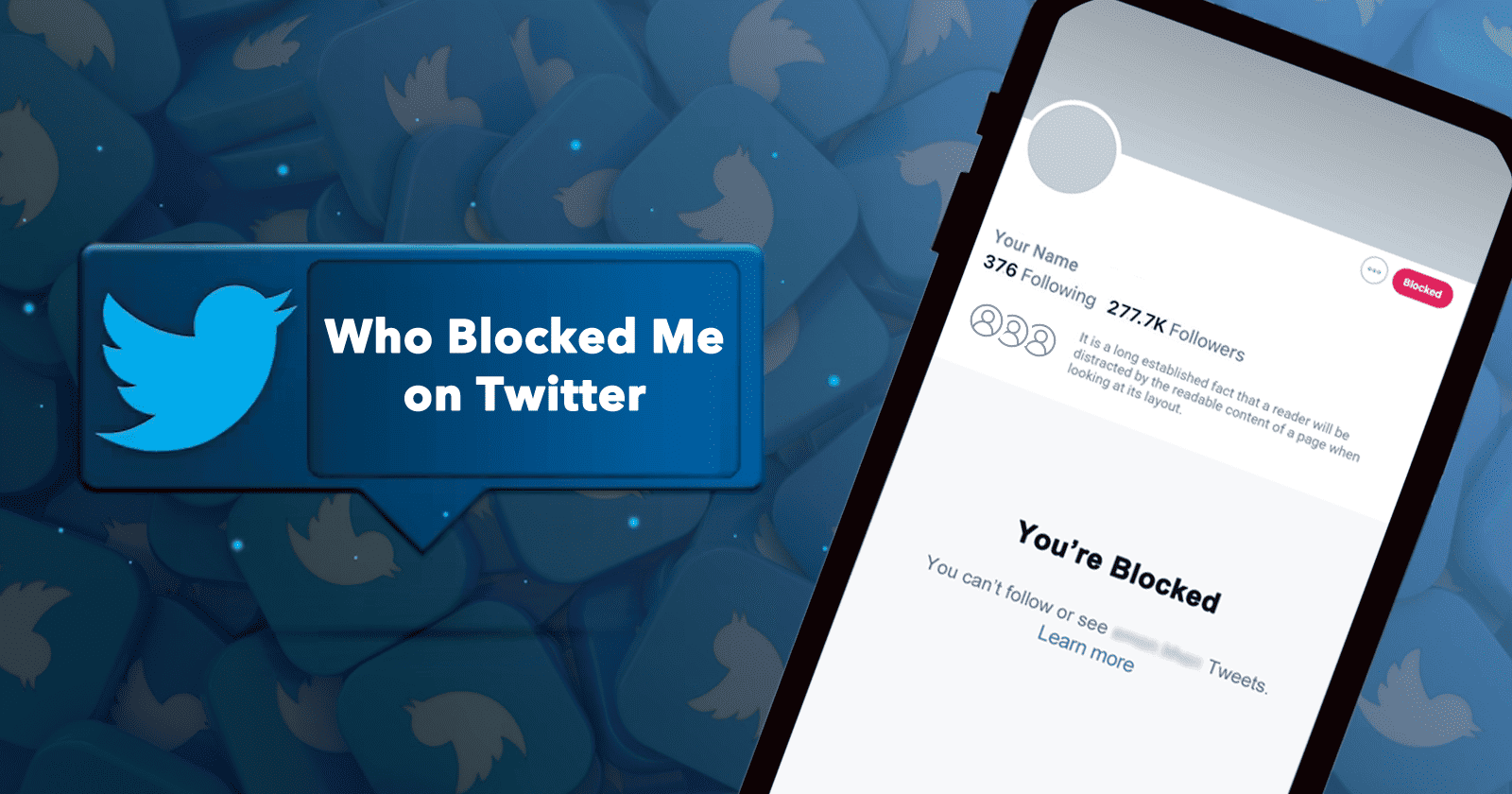
You may often wonder, "Who blocked me on Twitter?" and find some of your friends disappearing from your followers list. It's confusing, but
here's an easy way to learn more about the blocking feature, which teaches you how to control interactions with other Twitter accounts. In fact, using the Best Twitter block checker tools can help you quickly identify if someone has restricted your account.
Blocking is one of the most important features that helps people prevent certain accounts from communicating with them, viewing their tweets, and following them without their consent.
How do you know if someone has blocked you?
How do you know if someone has blocked you? This article raises an important question to understand how to deal with being blocked by others.
It's worth noting that the person who blocked you may prevent you from seeing parts of their account, so the blocked person will not be able to see the notifications, tweets, and reactions of the person who blocked you.
A ban may also result in the inability to add people to lists, listen to Twitter Spaces, or tag them in photos.
The blocked person will also not be able to send or receive messages directly with the blocker.
However, dear user, you should know that if you are ever blocked, you will still be able to see tweets that directly reference the person who blocked you.
It's worth noting that Twitter doesn't have any tools to help users identify accounts that have blocked them, other than manually verifying the suspected account.
Surprisingly, Twitter does not notify users who have been blocked by others.
How do I know who blocked me on Twitter?
How do you know who blocked you on Twitter? Twitter doesn't allow you to find out how many people have blocked your private or public account. Together, we'll learn the manual method Twitter allows to find out who blocked you on Twitter, as follows:
Finding out the actual profile name or username of the person who blocked you is easy.
- Access your Twitter account.
- Select the name of the person you want to search for in the search bar on the right side at the top of the screen.
- Click on the People tab, then find the account you want to verify.
- It is worth noting that the accounts of people who have “blocked me on Twitter” will not show you their tweets, but will inform you that you are “blocked.”
- You can repeat these steps, dear reader, with other accounts that you believe have blocked you on Twitter.
Twitter app
The Twitter app on Android or iOS allows you to find out who blocked you by following these steps:
- Log in to the Twitter app on Android or iOS.
- Click on the search icon from the bottom left.
- Type the username you want to search for in the search bar at the top of the screen.
- Click on people in individual accounts to search for the desired person.
- You can repeat this with other accounts to see who blocked you.
How to block on Twitter
There are two main ways to block someone on Twitter:
Method 1: On web browsers
- Log in to your Twitter account.
- Select the name of the person you want to search for in the search bar at the top right of the screen.
- Click on the people you want to block.
- Click on the profile of the person you want to block near the follow button.
- Select the block option, and then confirm your choice when the remaining window appears.
- Now you have successfully blocked the account you want to block.
The second method: on the Twitter application
The Twitter app on Android or iOS allows you to block anyone you want by following these steps:
- Log in to the Twitter app on Android or iOS
- Click the magnifying glass (search) icon in the lower left corner.
- In the search field at the top of the screen, type the username you wish to look for.
- Find the person you want to block
- Click on the profile page of the person you want and then choose “Block”
- Confirm the block option
- Now you have successfully blocked the account you want to block.
Twitter block list
There is no such thing as a Twitter block list for people who have blocked your account.
This can only be done by resorting to external assistance that will show you the number of people who have blocked you on Twitter.
Note that these entities show you the number of people who have blocked you without providing any information about their accounts.
There are several services, including Blolook (blolook.osa-p.net), which requires you to provide your Twitter credentials and grant Blolook access to your Twitter account.
This is very risky because Blolook (blolook.osa-p.net) is a third-party website and is not affiliated with Twitter itself.
Use the Blolook blocking app
Using the Blolook service involves several steps as follows:
- Go to blolook.osa-p.net using your internet browser.
- Log in to the Twitter platform and wait for the Twitter authorization screen to appear.
- Select Allow Blolook to access your Twitter account and you will be automatically redirected to the Blolook page.
- Scroll down to see information about your account ban, mutual account bans, and the number of current accounts you have banned.
Use Twitter Blocklist Checker
Using the built-in Twitter Blocklist Checker allows users to see the profiles of users they have blocked.
They can also see who has muted you other than blocking you.
To see the people you have blocked, follow these steps:
First: On web browsers
- Log in to your Twitter account.
- Click on the More menu on the left of the screen.
- Find the Privacy & Security tab.
- Select the “Mute” tab, then click on Blocked Accounts.
- Now you can get a view of all the people you have blocked.
- You can now unblock these people by clicking on the Blocked tab next to their profile names.
Second: On the Twitter application
1. Log in to the Twitter app on Android or iOS.
2. Open the menu from the left of the screen.
3. Find the Privacy and Security tab and click on it.
4. Select the “Mute & Block” tab, then click on Blocked Accounts.
Tips to avoid getting banned on Twitter
There are several tips to avoid being banned on Twitter, as follows:
First: Commitment to the general etiquette of using the Internet.
Second: You must understand the difference between blocking individual accounts and suspending an account due to violations of the Twitter Terms of Service.
Third: Review the guidelines for the Twitter Terms of Service, Twitter Rules of Use, and Twitter Rules to help guide the public conversation on Twitter.
Fourth: Rejecting violence, terrorism, abuse, or racism.
Fifth: Avoid using or promoting anything that is illegal or illegitimate.
Sixth: Avoid the policy of creating random tweets or retweets to manipulate the platform.
Seventh: Avoid using the platform for other political or civil purposes or interfering in them.
Finally, who blocked me on Twitter? Here's an easy way to learn the steps to block, which has become one of the most important things to know to ensure safe use and maintain privacy.