PDF Password Remover: Step-by-Step Guide to remove .pdf file Security Restrictions
By Brian Stewart 06-01-2026 656
Easy Guide to Open Locked PDF Files without Any Hassle
In today's digital age, PDF files are used everywhere, for office documents, e-books, bills, reports, and more. However, sometimes you encounter PDF files that are password-protected or have restrictions on printing, copying, or editing. If you forget the password or if a crucial document has unnecessary restrictions, your work can come to a standstill.
In this blog, we will learn:
How to manually remove security from a PDF received via Outlook
And how to find a quick solution using third-party tools
Part 1: Manual Method with Outlook
PDFs are often received as email attachments in Outlook. Outlook itself doesn't remove passwords, but you can try some workarounds to remove the security.
Method 1: Creating a new unlocked copy using "Print to PDF"
This method works when the PDF has print/copy restrictions but no open password.
Steps:
Open the email in Outlook and download the PDF attachment.
Open the PDF in a PDF reader (such as Edge or Adobe Reader).
Click Print.
Select Microsoft Print to PDF as the printer.
Save the new PDF.
The new saved PDF will frequently have no security limitations.
Method 2: Google Drive
If the PDF's password is open but you don't have the ability to alter or copy it:
Steps:
Download the PDF from Outlook.
Upload it to Google Drive.
Right-click on the PDF → Open with → Google Docs.
Now download the file again as a PDF or Word document.
Sometimes this method removes or reduces the security restrictions.
Part 2: Removing PDF Passwords with Third-Party Tools
If the manual method doesn't work, the easiest & most reliable method is to use a PDF Password Remover Tool.
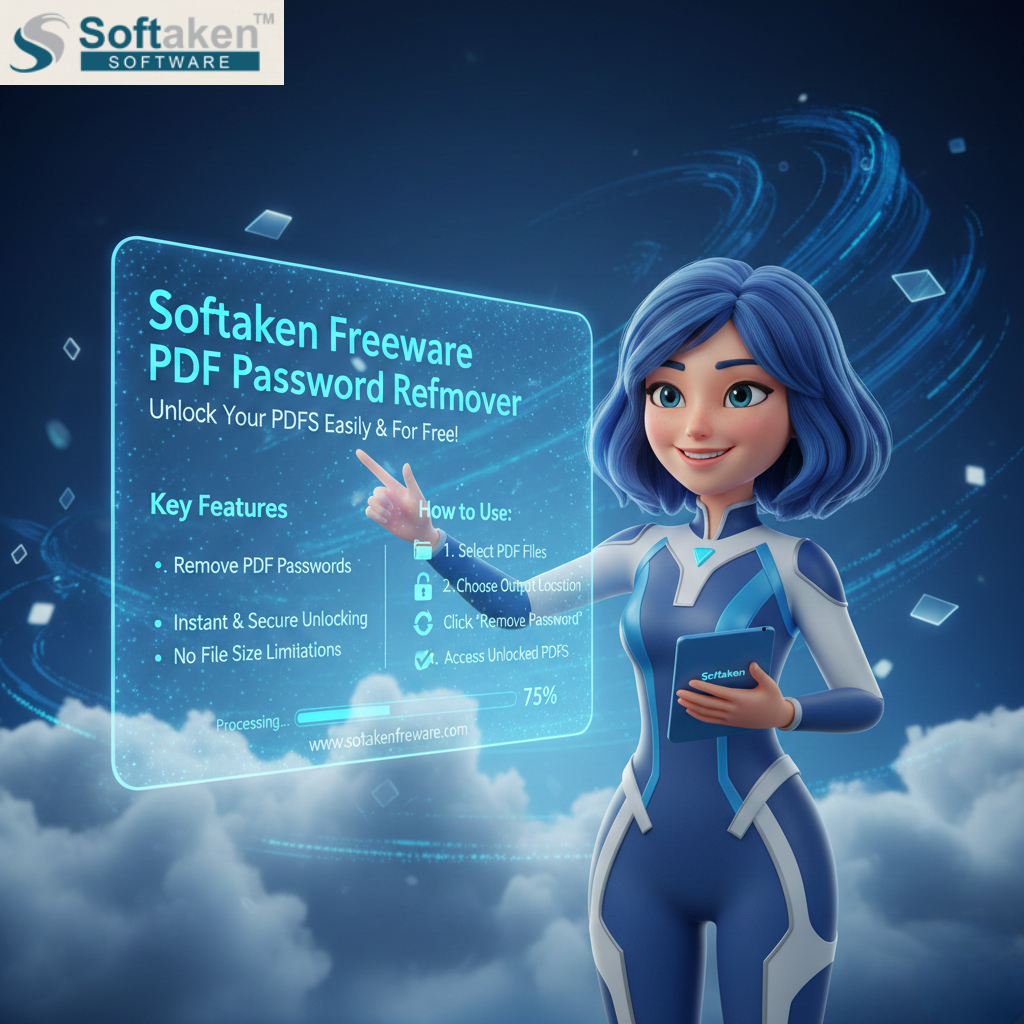
Softaken Freeware PDF Password Remover Software is an easy and reliable solution to this problem. This tool allows you to remove passwords and restrictions from PDF files completely free of charge.
Key Features of Freeware PDF Password Remover
Free and Secure
This software is completely free and does not harm your files. It is a safe and reliable way to remove PDF passwords.
Remove all types of PDF security
Open Password
Edit, Copy, and Print Restrictions
Simple and user-friendly interface
This tool is very easy to use. No technical knowledge is required.
Fast processing
The PDF is unlocked in seconds, regardless of whether the file is large or small.
Windows Compatibility
Fully compatible with all versions of Windows 7, 8, 8.1, 10, and 11.
How does Freeware PDF Password Remover work?
This tool makes the process of removing PDF passwords extremely simple. Here's a step-by-step guide:
Step 1: Download & Install the Software
Download & install the Freeware PDF Password Remover from the official Softaken website.
Step 2: Add PDF Files
Open the software and select your PDF file using the Add File or Add Folder option.
Step 3: Remove Password
If the PDF is password-protected, enter the correct password and click on Remove Password.
Step 4: Save the Unlocked PDF
In just a few seconds, your PDF will be unlocked, and you can now print, copy, or edit it.
Finally,
You can attempt manual techniques like printing to PDF or utilizing Google Drive if you ever receive a PDF via Outlook with undesired security limitations.
However, a solid PDF password removal program turns out to be the ideal choice when it comes to a 100% dependable and quick solution.
In this manner, you can effortlessly restore full access to your crucial PDF files.