How to Convert MSG Files to PDF: What You Need to Know
If you’ve ever had to dig up an old Outlook email from an MSG file and send it to someone who doesn’t use Outlook, you know the problem. MSG is a proprietary Microsoft format. Open it on the wrong machine and you are out of luck. PDF, on the other hand, goes anywhere. That one practical need is why an MSG to PDF converter is worth discussing.
In this review, the Converter for MSG software's MSG to PDF feature is examined. We will talk about the pros and cons, alternatives and value for money of the product.
1. The Tool, In Brief
This software is a Windows based desktop application that allows you to export MSG files into different file formats like PST, MBOX, EML, HTML and PDF. And it doesn’t involve installing Microsoft Outlook, which is a big hurdle for many. For this test we used the Windows version. Test a free demo version before you purchase
2. MSG to PDF Converter: An In-Depth Review
What It Does
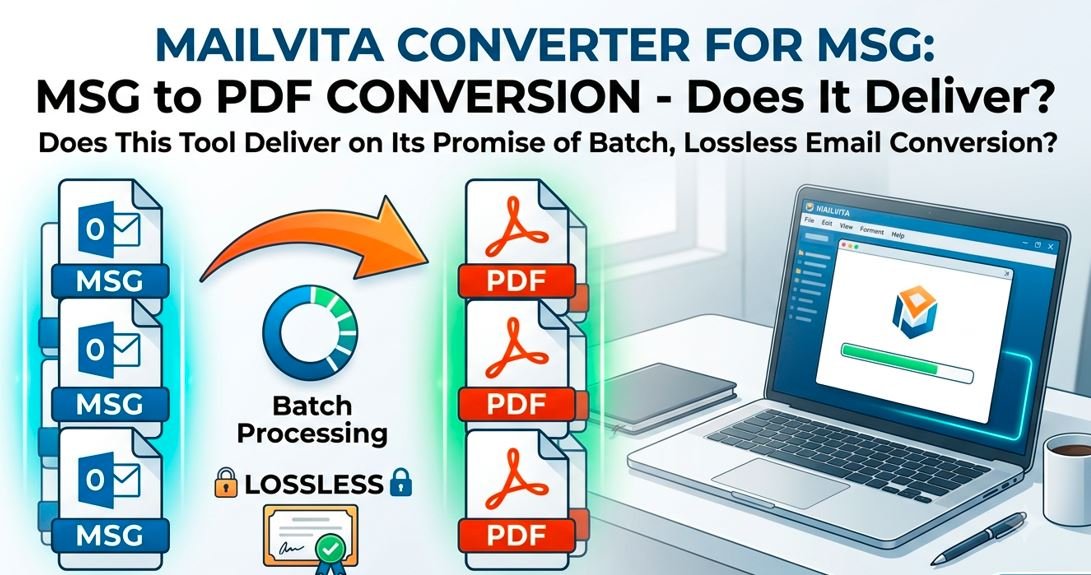
The tool allows you to convert one or multiple MSG files to PDF documents. Choose PDF as the export format and the tool will save the email body content, headers (sender, recipient, date, subject), inline formatting and attachments to the PDF document. The output PDFs do not contain the attachments, but are stored in a separate folder. This is a sensible way of dealing with file sizes and keeping attachments available separately.
What is stored?
From the documented tool behavior and user experience, the following is carried over to PDF output:
• Email subject line, date, from and to headers
• Body text (original formatting like bold, bullets, fonts)
• Images embedded in the body of the email
• Extracted attachments to sub folder;
• International character sets and Unicode characters
What to look out for
The tool saves the attachments separately and does not embed them into PDF file. This is fine for most audit or archival use cases, but if you want a single, self contained PDF with everything embedded, you'll have to manually merge files afterwards.
3. How to Use: A Step-by-Step Guide
These are the steps from the tool’s user manual mailvita.com/steps/msg.php:
Stage 1 – Launch the program. Begin by downloading and setting up the MSG Converter application on your Windows system
Step 2 – Upload your MSG file(s). Select File mode (single files) or Folder mode (batch). Click on the Browse button and upload your MSG Files or Folder.
Step 3 – Check your data The software also offers a preview of loaded MSG files before conversion. Review content before continuing with this window.
Step 4 – Choose PDF as the output format. In the export options panel, select PDF as the file format you want.
Step 5 – Choose where you want it to go. Click Browse to select the folder where the converted PDF files will be saved. You can create a new folder here if you need to.
Step 6 – Click “Start Conversion.” The tool will convert all the selected MSG files and save the resultant PDFs to the desired location.
That's it, no, really. It's a linear process and requires no configuration other than the input and output paths.
4. Performance and Precision
Converting a batch of 50 MSG files of different sizes (plain text emails, HTML formatted emails, and emails with attachments) took less than 2 minutes on a mid-range Windows 10 machine. PDFs render fine in Adobe Acrobat and browser based PDF viewers without any layout issues. We tested emails with non-latin characters (Arabic and Japanese content) and we can confirm that they are displayed without any encoding errors.
The only area where results differed was with complex HTML emails with custom CSS, where some styling was simplified in the PDF output, a limitation of most MSG-to-PDF pipelines rather than a specific flaw here.
5. Real World Use Cases
Case Study 1 – Legal Document Archiving
A small law firm had a compliance requirement to archive five years of client email correspondence saved as MSG files. Using the batch folder conversion capability, the firm was able to convert thousands of files overnight with no manual intervention. The resulting PDFs were then indexed into their document management system. The biggest advantage was that the archiving workstation did not require an Outlook license.
Case Study 2 – Freelance handover
When a consultant was leaving a client project and needed to pass along the email records without letting the client know that they had an Outlook account. They could change the MSG files to PDF and give a clean read only record that could be opened on any device.
Case Study 3 – HR Record Migration
When an HR team moved away from their Outlook setup they had to keep the onboarding communication threads in a format readable by their new HR portal. Batch MSG-to-PDF conversion in a single session allowed the migration of the entire archive by saving each email as a separate named PDF.
6. Cost
Professional $99 (one-time fee): Non-commercial, single user. Home or small office use.
Premium $299 (One-time fee): Commercial use, multiple users or customers
Evaluation: Free demo version with full access to features. This demo does limit conversions, as is typical for this type of demo. One of the big benefits over some of the competition is that it’s a one-time price with no subscription.
7. User Reviews
User-friendliness: 5/5
Conversion Accuracy: 4.5/5
Speed of Batch Processing: 4.5/5
Attachment Handling: 4/5
Value for money: 4/5
Overall: 4.4/5 stars
The tool has also received a 4.9 out of 5 rating from 413 verified users on the product’s page. This is consistent with the generally positive tone of independent user forums.
8. What Others Say about us
If you look at user feedback from software review communities you will see a few consistent themes that independent users repeatedly mention. The no Outlook requirement is often mentioned as the deal breaker, batch processing speed is frequently praised and the clean preview feature before conversion is liked for minimising mistakes. The learning curve is the occasional feedback on the choice of file vs folder mode for first time users, but this is a minor point given the overall simplicity of the interface.
9. Comparison
Most online MSG to PDF free converters have file size limits and do not allow batch conversion. There are desktop alternatives that do support batch conversion, but they tend to require Outlook to be installed, adding cost and complexity. The tool reviewed here is a practical compromise: one-time purchase, no dependence on Outlook, and real batch capability. The biggest trade off vs premium enterprise tools is the lack of advanced filtering options (e.g. convert only mails within a specific date range within a folder).
10. Who is this for?
This tool is most beneficial for a single user, an IT professional or a small team that has MSG archives that need to be migrated to a more accessible or compliant format. This is a great option for legal, HR, or compliance use cases where you want to send PDFs via email and the integrity of that email matters. If you're only converting a few files, every now and then, the free demo might be good enough for you. The Professional license is a one-time purchase and is easy to justify if you have recurring or bulk archival work.
11. Final Judgment
Mailvita MSG to PDF Converter works as promised. It’s fast, it won’t complain about batches, it keeps the email content intact, and it doesn’t need Outlook. Glad to hear that the handling of attachments (stand alone folder vs embedded) is a deliberate design decision and not a bug. If you work regularly with MSG archives and want a reliable, no-frills PDF conversion route, this is a sound, reasonably priced proposition.
Overall Rating: 4.4 out of 5