Lost Access to Gmail Account? Here’s How to Recover It (Step-by-Step Guide)
By Gloria Prichett 13-10-2025 125
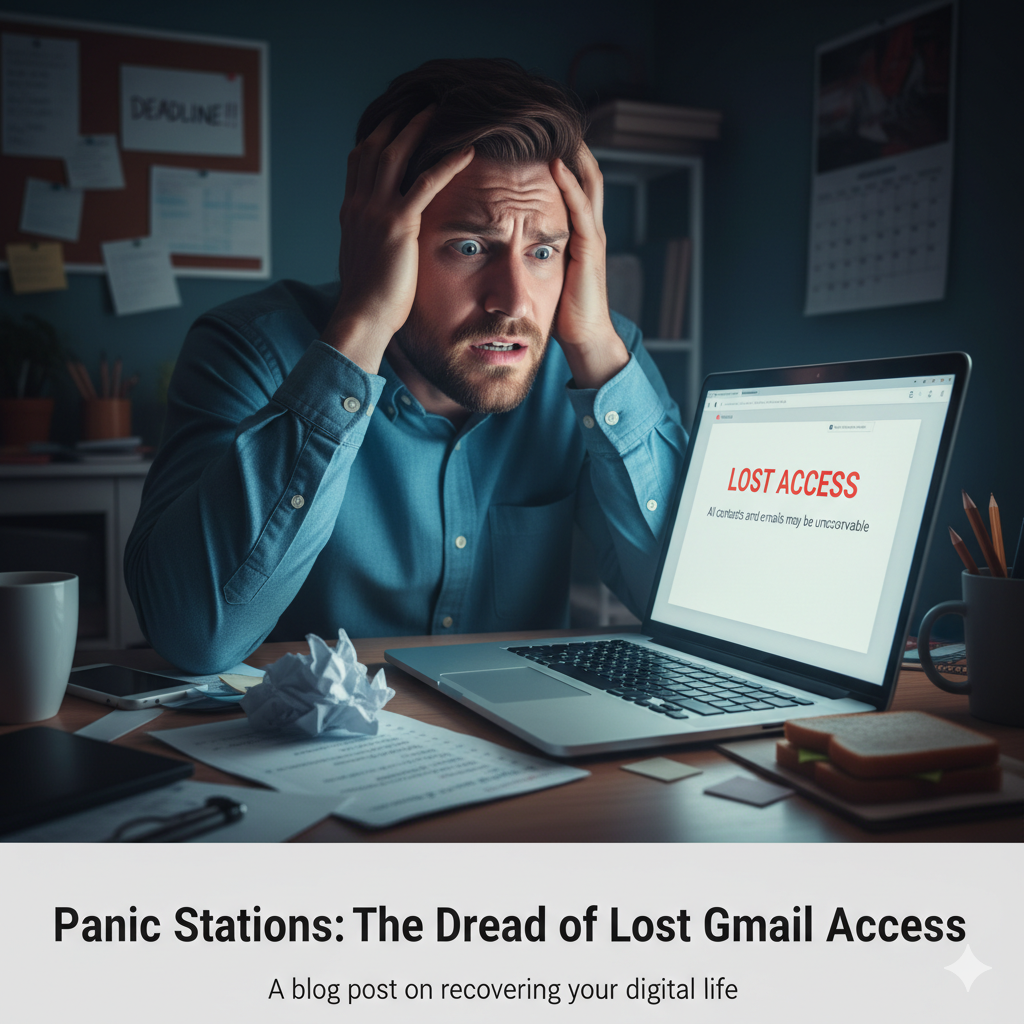
Overview: If you lost access to Gmail account, you’re not alone—and there are steps you can take to try to regain control. In this post, we’ll walk you through manual recovery methods, show why they sometimes fail, and then introduce an email backup tool as a smarter long-term strategy.
I’ve helped many users who can’t access their email and feel locked out forever. Dealing with no access to Gmail account is frightening—especially if your Gmail holds critical data, contacts, work files, or memories. In this guide, I’ll walk you step-by-step (easy to follow, no tech jargon) so even someone new can try to recover access or at least protect their data next time.
How to Recover Lost Access to Gmail Account
Here are 10 methods you can try (in order). Some will depend on what recovery options you still have (phone, recovery email, past devices, etc.).
Go to Google’s Account Recovery Page
Visit: accounts.google.com/signin/recovery
Enter your Gmail address and follow prompts.
Tip: Always use a familiar device (laptop or phone you’ve used before) and network (same WiFi) for better chance.
Warning: If too many failed attempts, Google may lock recovery temporarily.
Use “Try Another Way” / Alternate Verification
If asked for your phone or recovery email and you don’t have it, click “Try another way.”
Google may ask: “When did you create this Gmail?” or “Send a code to your backup email.”
Note: These alternate paths vary depending on your account settings.
Check If You Are Still Signed In Somewhere
Maybe your Gmail is open on your phone, tablet, or another browser session.
If yes, go to Settings → Security → change password, update recovery options.
Answer Security Questions / Past Passwords
Google may ask you to enter one of your old passwords.
Try to remember: approximate date when account was created, names of labels/folders, frequently emailed contacts.
Use Backup Codes (if you saved them earlier)
If you enabled 2FA, you may have saved backup codes.
Use one of these to bypass the SMS verification.
Wait a Few Days and Try Again
Several Reddit users reported that letting the account sit for a week with no recovery attempts allowed Google’s system to reset internal flags, giving new recovery paths.
Caution: Don’t try repeatedly in short span—Google may block you further.
Use a Trusted Device & Location
Attempt recovery from a device you used often to log in (e.g., home computer).
Use same IP / WiFi where you often signed in.
Recover via Linked Google Services
If your Gmail was tied to Google Workspace, YouTube, or Google Photos, sometimes logging into those first helps.
From there, navigate to “Manage Google Account” → Security → recovery.
Submit a Google Account Recovery Form / Appeal
If all else fails, you'll see an option “Verify identity” or “Fill more info.”
Provide all possible info (dates, last used devices, previous passwords).
Be honest—not guessing wildly, only what you remember.
Contact Google Support (for paid accounts / Workspace)
For regular free Gmail, Google does not offer live support.
If your Gmail is part of a G Suite / Google Workspace (paid), your administrator or Google support may help.
Limitations of Manual Methods
If no recovery phone or email was configured, chances are slim
Google may reject identity verification if your answers don’t match records.
Many users report that after some time, Google responds “We can’t verify you.”
You can’t force Google to help in free Gmail—there’s no human you can call.
This is why relying only on Google’s recovery is risky—once locked out, you might lose emails permanently.
Why Use an Email Backup Tool (Better Way)
If you lost access to Gmail account and succeed, great. But what about the risk of it happening again? Or when you can’t recover?
That’s where a dedicated email backup tool steps in. This tool helps you export and save your Gmail emails, so even if the account is locked or permanently inaccessible, your data is safe.
Use Advanced Tool to Prevent Data Loss in Case of Lost Access in Gmail
Meet Email Backup Wizard — a professionally recommended email backup tool that lets you securely export, archive, and save Gmail emails (and more) offline. A free trial version is available so you can test it risk-free and see your emails saved locally.
How to Use the Email Backup Wizard
Here are steps (simple, beginner-friendly):
- Start the tool and select Gmail as the source.
- Enter your Gmail email address and click Sign In with Google.
- Enter your Gmail password and grant permissions. Click Continue.
- All Gmail folders (Inbox, Sent, Spam, etc.) are loaded in the interface.
- Select the folder(s) you want to back up.
- Choose an output format (PDF, EML, MBOX, etc.).
- Click Browse to choose a local folder where backup will save.
- Press Convert / Backup. The tool will download all selected emails.
Advantages of Using Email Backup Wizard
- You retain control — no matter what happens to your Gmail access, your backups are safe.
- Simple UI — suitable even for non-technical users.
- Batch export — save many emails in one go.
- Multiple formats — you can export as PDF, EML, MBOX, etc.
- Free trial version — you can test before committing.
- Reduces risk — you’re not relying solely on Gmail’s recovery.
FAQs
Q: How can I recover my Gmail account without phone number or recovery email?
A: Try “Try another way” on Google’s recovery page, answer security questions, use familiar devices, or wait a while and retry. But if no recovery info was set, success is unlikely.
Q: What happens if you lose access to your Gmail account permanently?
A: Without valid recovery options or proof, Google may not allow re-entry. That could mean losing all emails tied to that account.
Q: Who do I call to recover my Gmail account?
A: For free Gmail accounts, there’s no customer support line. You must go through Google’s recovery procedure online.
Q: How do I verify my Google account without my old phone?
A: Use a trusted device, answer security prompts, supply past passwords, or use backup codes — depending on what Google still accepts.
Q: Can I recover Gmail account epic games or lost access to email account facebook?
A: If those accounts (Epic Games, Facebook) are linked to your Gmail, your access issues there may cascade. Recover Gmail first; then use email linkages inside those platforms to reset.
Conclusion
Dealing with lost access to Gmail account is stressful. Manual recovery steps (account recovery page, security questions, trusted devices) can work — but they have significant limitations. If you lose all recovery options, you might permanently lose emails. That’s why having a proper email backup tool like Email Backup Wizard offers peace of mind: even if you lose access, your data remains under your control.
Start recovery attempts immediately, but don’t wait—set up your backup before a crisis occurs.
Tags : gmail email backup data recovery