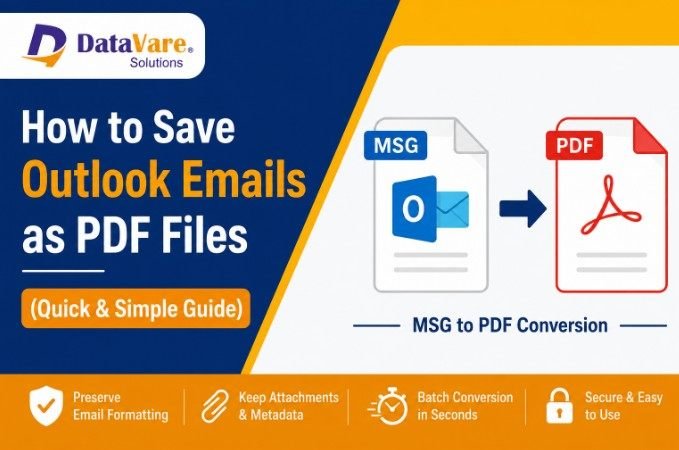
Email communication continues to be an essential part of personal and professional workflows. MSG is the format for single email messages that are saved by Microsoft Outlook. It includes the email text, attachments, sender information, date and time, and other metadata. MSG files are handy within the Outlook world, but they can be problematic when you want to share emails with people who don’t have Outlook installed.
This is where PDF is the preferred format. PDF files are available everyplace, are easy to distribute and preserve the design of the email messages on different devices and operating systems. By converting Outlook emails to PDF, you get the best compatibility and convenience for sharing important business communications, legal correspondence, invoices, contracts or archived emails.
In this tutorial, you will learn why PDF is the format of choice, some of the different ways to save Outlook emails as PDF, and how professional solutions can make the process easier.
Why You Should Convert Outlook Emails to PDF
Before explaining the conversion process, first we need to know the reason for the use of PDF in the email sharing.
Universal Compatibility
You can open PDF files on Windows, Mac, Linux, Android and iOS devices without using Microsoft Outlook. It makes sharing of emails across different platforms much easier.
Maintains Email Formatting
Converting Outlook email to PDF preserves the original formatting, images, hyperlinks, and layout. This ensures that recipients see the email exactly as you intended.
Improved Security
PDF documents can be password-protected and encrypted, making them a more suitable choice for sensitive information sharing.
Archiving Made Easy
Many organizations convert emails to PDF files for long-term storage, compliance requirements, audits, and legal documentation.
Simpler Printing
PDF files are a print-ready format, and they guarantee a consistent output, no matter what device or printer you are using. PDF is the industry standard for long-term email storage, because it maintains formatting, metadata and platform-independent accessibility.
How to Save Outlook Emails as PDF Manually Using Outlook
You can save emails as PDF files by using the Print option in Microsoft Outlook.
How to Save an Email as PDF
- Launch Microsoft Outlook.
- Choose the email message you want to convert.
- Select File > Print.
- Select Microsoft Print to PDF as your printer.
- Click Print.
- Choose a place to save the PDF file.
- Type a file name and click Save.
The email will be converted and saved as a PDF document.
Limitations of the Manual Outlook Printing Method
This approach works well for occasional conversions but has several drawbacks:
- Converts single email at a time only.
- Takes a long time for large sets of emails.
- Attachment control is constrained.
- Not for business or enterprise use.
- May not retain all metadata and email properties.
If you are a user who has to process hundred or thousands of MSG files then the automated solution is a must.
Common Challenges When Sharing Outlook MSG Files
Many users are facing issues while sharing Outlook emails directly.
Reliance on Outlook: MSG files need Outlook on the recipient's computer.
Compatibility Problems: MSG files may not display correctly on non-Windows or mobile devices.
Massive Email Archives: Many organizations have large email archives that need to be shared with clients, legal teams, auditors or stakeholders.
Handling Attachment: Detachments from e-mail messages may cause confusion and the potential for missing important information.
These challenges make pdf conversion a viable and realistic option.
How to Batch Convert Outlook MSG Files to PDF Instantly
If you often work with Outlook email files, a dedicated conversion tool can be a more efficient way.
DataVare MSG to PDF Converter is a professional utility to convert Outlook MSG files to PDF format with all email attributes. The software makes it simple to convert and eliminates the constraints of the manual approach. According to the product description, professional MSG to PDF tools can retain formatting, images, attachments, metadata and offer batch conversion without installing Outlook.
Key Advantages of Using Specialized Conversion Software
Bulk Conversion: Batch convert MSG files to PDF format in one click that saves your lots of time and efforts.
Preserves Email Elements: Software keeps:
- Sender and recipient details
- Email headlines
- Body of email format
- Embedded images
- Hyperlinks
- Attachments
- Metadata
No need for Outlook installation: You do not have to install Microsoft Outlook on your system to convert MSG files.
Easy to Use: The software is for both technical and non-technical users, so conversion is easy with little effort.
Secure Email Archiving Solutions: PDF files produced by professional conversion are suitable for archiving, compliance and record management purposes.
How to Convert MSG Files to PDF with a Specialized Tool
The conversion process is pretty straightforward:
Download and Install: Download the software from the official website and launch it on your Windows computer.
Add MSG Files or Folders: Click on the Add Files or Add Folder button to browse and load your Outlook MSG files into the software interface.
Preview Emails: (Optional) View and inspect your selected emails within the built-in preview pane to ensure you have the right files.
Select Output Format: Choose PDF as your desired export format from the available options.
Choose Destination Path: Select the target destination folder on your system where you want to save the resulting PDF files.
Start Conversion: Click the Convert button to begin the batch conversion process. Within minutes, your emails will be exported and ready as PDF documents.
Within minutes, the emails are available in PDF format, ready to be shared across any platform.
Best Practices for Managing and Sharing Email PDFs
To keep everyone on the same page and documents well managed, here are some best practices:
Properly Organize the Files: Use descriptive file names and folder structures to make it easier to locate emails in PDF format.
Attachments To Add: If the attachment is important to the communication, make sure that it is preserved in the conversion.
Keep Sensitive Information Safe: Send confidential email content with password protection.
Check Formatting: Always review the PDF conversion to verify the formatting and content are correctly maintained.
Keep Backup Copies: Retain original MSG files along with converted PDFs for future reference and verification.
Conclusion
To increase the accessibility, portability and long-term usability of email communications, one of the most effective ways is to convert Outlook email messages to PDF. PDF files eliminate compatibility issues, preserve the original form of messages, and enable easy and safe exchange of information between different platforms.
While Outlook’s built-in print function may be enough for occasional conversions, organizations and professionals handling large volumes of email data need a more dependable solution. DataVare MSG to PDF Converter is a quick way to batch convert MSG files with all email integrity, attachments, formatting and metadata. Converting Outlook emails to PDF provides for easier sharing, better document management and accessibility across devices and operating systems.
FAQs
Why Convert Outlook Email to PDF?
PDF files are supported everyplace, easy to share, secure and are a better format for long-term archiving than MSG files.
How to Save Outlook Emails as PDF without Outlook?
Manual conversion needs Outlook, but professional MSG to PDF converter tools can convert MSG files without Outlook installation. Conversion software ensures long-term email preservation because it preserves formatting and accessibility across platforms.
Can I batch convert MSG files?
Yes, you can use professional batch conversion tools to convert hundreds or thousands of MSG files to PDF at once.
Will the PDF file contain the attachments?
Yes, specialized conversion tools will keep the email’s embedded images, links and attachments, as well as the email text itself.
Do I need to install Microsoft Outlook to use a converter?
Most professional MSG to PDF converters are standalone and do not require Outlook to be installed on your system.