How to Move Outlook for Mac Emails to Windows Without Losing Mailbox Data
By Jennie Pierce 14-08-2026 95
Overview
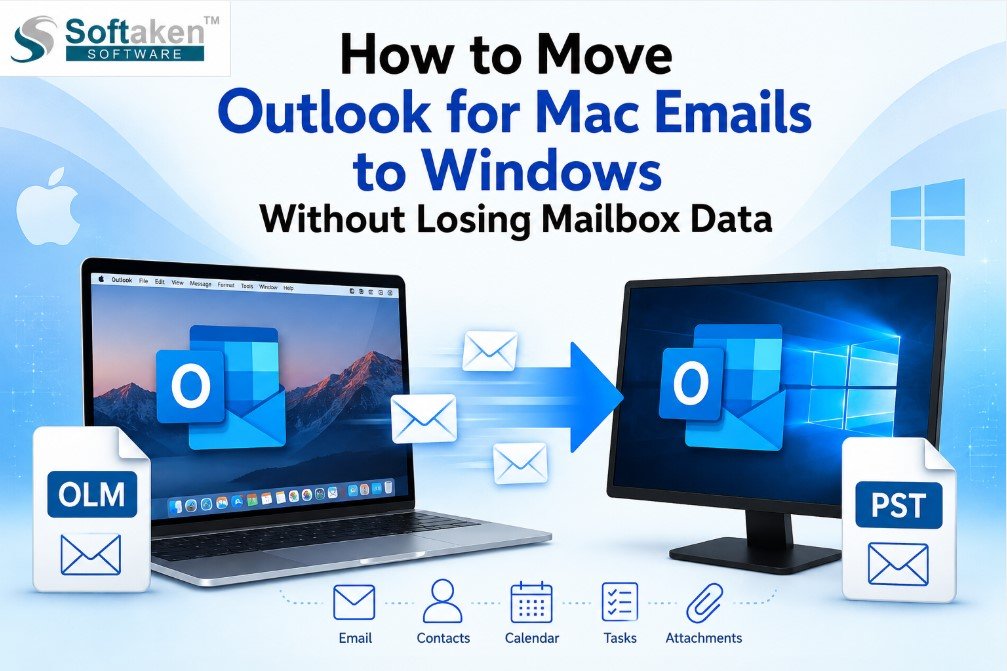
Moving your email data from Outlook for Mac to Outlook for Windows is often necessary when changing computers, moving an organization or switching from macOS to Windows. But it’s not as simple as copying an Outlook data file from one operating system to the other. Outlook for Mac uses OLM format, while Outlook for Windows uses PST for local Outlook data. Microsoft says that OLM files are not directly supported in Outlook for Windows.
Therefore, OLM to PST conversion becomes a very important step for users who want to transfer their Mac Outlook mailbox to Windows while retaining their emails and other mailbox information.
An Outlook mailbox can have years of important emails, attachments, contacts, calendars, tasks, notes and folders. When moving from Mac to Windows, users need to think about how to convert the file and how to retain the structure of the mailbox and check the output data.
Migration can be handled by a manual method, a web-based method or a dedicated conversion software in general. Each technique has its own demands and limitations.
What is OLM and PST?
OLM: An Outlook for Mac data file. Outlook for Mac uses it to export and archive mailbox information. Outlook for Mac can archive mailbox content to an OLM archive, but Outlook for Windows doesn't natively import OLM files.
PST: Personal Storage Table is an Outlook data file. It is used by Outlook for Windows to store mailbox information locally. Converting OLM to PST provides you a format that can be utilized in Windows-based Outlook.
Why Convert OLM to PST Format?
The main reason for this is the migration of cross-platform Outlook. You cannot directly open an OLM file created on a Mac in Outlook for Windows. Outlook for Windows does not support OLM data files, says Microsoft explicitly.
OLM to PST conversion may be needed when users want to:
- Use Outlook for Windows instead of Outlook for Mac.
- Retain historical outlook emails.
- Open archived mailbox information.
- Move mailbox data with email attachments.
- Organize folders in mailboxes.
- Back up important Outlook information locally.
- Prepare email archives for future access from Windows.
The stakes are even higher for organizations as business mailboxes often store customer correspondence, invoices, contracts, reports and other records that need to be accessible after migration.
Manual Ways to Transfer Outlook Mac Mails to Windows
A workaround is to use an email account that supports IMAP as a go-between. This method moves your e-mail from Outlook for Mac to the online mailbox, and then syncs with Outlook on Windows. The synchronized mailbox can then be exported to PST by a Windows Outlook installation.
Steps
- Set up an IMAP-compatible account in Outlook for Mac.
- Create or identify the necessary folders for migration.
- Transfer or copy emails from Mac Outlook mailbox to IMAP account.
- Allow the mailbox to synchronize completely.
- Set up the same account in Outlook for Windows.
- Wait for all necessary messages and folders to synchronize.
- Confirm availability of emails and attachments.
- Export required mailbox data to PST using Outlook for Windows.
Advantages
- No dedicated conversion software required.
- Utilizes standard email and Outlook functionality.
- Can work for smaller mailboxes.
- Useful if the mailbox is already hosted on an IMAP-enabled service.
Disadvantages
For large archives, the manual process can become cumbersome. It is dependent on the mailbox sync and Internet connectivity. IMAP doesn’t transfer all types of Outlook data in the same way. Some data, such as contacts, calendars, tasks and notes, may need special handling.
Big mailboxes also carry the risk of duplicates, incomplete synchronization, folder differences, and longer processing times.
Web-Based Approach
A web-based solution may be uploading or transferring mailbox data via an online service that supports email migration or file conversion.
Steps
- Choose an online OLM migration or conversion service.
- Follow the service instructions to upload the OLM file.
- Choose PST as the preferred output.
- Begin the online conversion.
- Download the PST file.
- Open the PST in Windows Outlook.
- Check your email, folders, and attachments.
Advantages
- No software installation required on the desktop.
- Access via web browser.
- May be convenient for small files.
- Reduced local configuration in some cases.
Disadvantages
To convert online, you need to upload sensitive mailbox data to the third-party service. Therefore, users should check the privacy policy, file retention policy, upload limits, security measures, and supported file sizes before using such a service.
Another problem with large files is the reliance on the internet. Uploading and downloading a large OLM archive can take a long time.
Tool-Based Approach
The other method is to use a dedicated desktop converter. Softaken OLM to PST Converter is a software which converts OLM mailbox data to PST and also let you migrate emails, contacts, calendars, notes, tasks, attachments and other mailbox items.
You will also find information on preview functionality, handling large OLM files and conversion without installing Outlook in the product documentation.
How to Convert OLM to PST
- Download and launch the conversion app.
- Locate and select the required OLM file.
- Scan the mailbox of OLM.
- Preview the items available in the mailbox and folders.
- Choose the mailbox data you want.
- Select PST as output format.
- Choose a destination location.
- Start the conversion.
- Wait for the process to complete.
Open the resulting PST in Outlook for Windows and check the converted data.
The procedure is similar to previous ones: pick the OLM file, preview it, pick the PST export type, select the destination, and initiate conversion.
Watch full guide: https://youtu.be/dJvrEuTYdDc?si=keXISOPm4G9m0sm6
Advantages of the Tool-Based Approach
A dedicated conversion workflow has several practical advantages:
Direct OLM to PST conversion: Not require of an intermediate email account.
Mailbox preview: Users can preview the data that is available for export.
Selective conversion: You can select the data of a particular mailbox as and when required.
Attachment and Nested Message Conversion: Attachments and nested messages can also be converted.
Large file support: The product documentation talks about dealing with large OLM files and enhancements in progressive loading.
No Outlook dependency: The documented workflow does not require Outlook to be installed as a part of the conversion itself.
Local Processing: Users can keep the source and destination files on their computer rather than uploading the OLM archive to an online service.
What makes the tool-based method more preferable than other methods?
The best approach depends on mailbox size, privacy requirements, existing applications and types of data being migrated.
A manual IMAP-based workaround might be enough for a small mailbox. But big or complicated archives can take a lot of time to sync, and need additional verification. Web services are convenient but involve uploading mailbox data and require access to the Internet.
There is a dedicated desktop converter that provides a more direct workflow: OLM PST. It also offers mailbox preview, selective data handling, attachment support and dedicated local output location. These features make the approach especially practical when users are moving large Outlook archives from Mac to Windows.
Best Practices for Migrating OLM to PST
To avoid unnecessary migration problems, follow these practices:
- Retain a copy of the original OLM file as-it.
- Ensure the correct OLM archive has been selected.
- Verify available disk space before converting.
- Look at mailbox folders ahead of time.
- Remember important emails and attachments to check after conversion.
- Use a different destination folder for the PST.
- Do not change the source OLM while processing.
- Load the resulting PST in Outlook for Windows.
- Search emails based on various folders and dates.
- Review important attachments.
- Keep the original OLM until the PST has been completely checked and backed up.
FAQs
- How to access an OLM file directly in Outlook for Windows?
No. Outlook for Windows does not support OLM files natively. Migration method or conversion to supported format such as PST are different.
- Why PST is useful for Mac to Windows Outlook migration?
PST is an Outlook data format supported by Outlook for Windows and useful for moving locally stored Outlook mailbox information into the Windows environment.
- How to transfer Mac Outlook emails to Windows via IMAP account?
Yes. While not all Outlook data types may be transferred to an IMAP account, it can be used as a middleman to move email messages and folders between Outlook for Mac and Outlook for Windows.
- Can the manual method work for large OLM files?
It can but large mailboxes can take quite a bit longer because the data has to sync thru the online mailbox. Big archives also should be checked thoroughly.
- Can attachments be included in OLM conversion?
Attachments can be converted in a separate conversion flow together with the mailbox data.
- Do I need to install Outlook to convert OLM to PST?
As per the product documentation, the dedicated converter can do OLM to PST conversion without having Outlook installed to do the conversion.
- Once the PST file is created, do I need to delete the OLM file?
No. Keep the OLM original until the resulting PST has been opened, checked, backed up, and verified to contain the required mailbox data.
Conclusion
Moving emails from Outlook for Mac to Windows takes more than a simple file move. As OLM is not a native format for Outlook for Windows, the users require a proper migration path to access the mailbox in the Windows environment.
Manual and web-based methods can be effective in the right situations, but they can limit synchronization, privacy, uploads, or data types. Dedicated conversion workflow offers a more straightforward way to convert OLM data to PST with options for mailbox preview, selective processing, attachment handling and local output management. Therefore, for the users who are dealing with large or important Outlook archives, Softaken OLM to PST Converter can be considered as the dedicated solution to make the Mac Outlook mailbox data ready for access to the Windows-based Outlook.