QuickBooks H202 Error usually appear when QuickBooks cannot establish a connection between a workstation and the computer hosting the company file. These network-related errors can prevent users from opening a company file in multi-user mode.

QuickBooks Errors H101, H202, H303, and H505 are commonly associated with QuickBooks multi-user hosting and network connectivity problems. A misconfigured firewall, incorrect hosting settings, damaged network configuration, or an inactive QuickBooks service can cause these errors.
If you are experiencing QuickBooks Error H202, follow the troubleshooting solutions below to restore communication between your workstation and server.
What Causes QuickBooks Error H202 in Multi-User Mode?
QuickBooks uses a network connection to allow multiple users to access the same company file. The computer that stores the company file acts as the server or host, while the other connected computers work as workstations.
QuickBooks Error H202 may occur when a workstation cannot communicate with the server. Common causes include:
- Incorrect QuickBooks hosting settings
- Windows Firewall blocking QuickBooks
- QuickBooks Database Server Manager not running correctly
- Damaged or incorrectly configured network files
- QuickBooks services not running on the server
- Incorrect folder permissions
- Network connectivity problems
- Multiple computers configured to host the company file
Error H505 can occur when QuickBooks detects an incorrect hosting configuration on the network.
Important: QuickBooks Database Server Manager is not designed to host company files on Network Attached Storage (NAS) devices.
Before You Begin: Check Your QuickBooks Hosting Setup
The server is the computer where your QuickBooks company files are stored. Before troubleshooting H202 or H505, make sure you have correctly installed QuickBooks Database Server Manager on the server for every QuickBooks version used on your network.
You can set up QuickBooks Database Server Manager in two ways:
- Full Program Installation: Install the complete version of QuickBooks Desktop along with Database Server Manager on the server computer.
- Server-Only Installation: Install only QuickBooks Database Server Manager on the server. This setup allows the server to host company files without installing the full QuickBooks Desktop application for regular use.
How to Fix QuickBooks H202 Error: Troubleshoot Multi-User Mode
Start with the QuickBooks Tool Hub because it can automatically diagnose and repair several common network-related problems.
Solution 1: Run QuickBooks Database Server Manager Using Tool Hub
Step 1: Download and Install QuickBooks Tool Hub
First, close QuickBooks Desktop on the server and workstations.
Then install the latest available version of QuickBooks Tool Hub from Intuit. Save the installation file somewhere easy to locate, such as your Windows desktop or Downloads folder.
Open the downloaded QuickBooksToolHub.exe file and follow the installation instructions.
After installation:
- Double-click the QuickBooks Tool Hub icon.
- If you cannot find the icon, search for QuickBooks Tool Hub from the Windows Start menu.
- Open the application.
For the best experience, use the Tool Hub on a supported 64-bit Windows system.
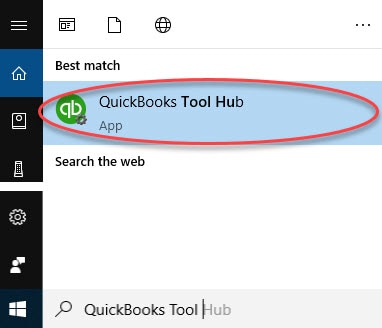
Step 2: Run QuickBooks Database Server Manager
On the server computer:
- Open QuickBooks Tool Hub.
- Select Network Issues.
- Choose QuickBooks Database Server Manager.
- If QuickBooks Database Server Manager is not installed, follow the prompts to install it.
- Select the company file folder displayed in the tool.
- If the folder does not appear, select Browse and locate your company file folder.
- Select Start Scan.
Database Server Manager scans the selected folder and can automatically configure certain Windows Firewall permissions required for QuickBooks.
When the scan finishes, select Close.
Now open QuickBooks Desktop on the affected workstations and select: File > Switch to Multi-user Mode
If you can access the company file successfully, Error H202 should be resolved.
Solution 2: Run QuickBooks File Doctor
If H202 continues to appear, use QuickBooks File Doctor to check your company file and network connection.
- Open QuickBooks Tool Hub.
- Select Company File Issues.
- Select Run QuickBooks File Doctor.
- Choose your company file from the list.
- If you cannot find it, select Browse and locate the file manually.
- Choose Check your file and network.
- Select Continue.
- Enter your QuickBooks administrator password.
- Select Next.
Allow the tool to complete the scan. Then reopen QuickBooks on the workstation and switch to multi-user mode.
If H202 remains, continue with the manual troubleshooting methods below.
How to Fix QuickBooks Error H202 Manually: Restore Multi-User Access
Solution 1: Check QuickBooks Services on the Server
QuickBooks requires specific Windows services to run correctly on the server.
If you use the full QuickBooks Desktop installation on your server, first verify that multi-user hosting is enabled.
Open QuickBooks on the server and select: File > Utilities
If you see Host Multi-User Access, select it. If you see Stop Hosting Multi-User Access, do not select it.
Next, check the QuickBooks services.
- Open the Windows Start menu.
- Search for Run and open it.
- Enter services.msc.
- Press Enter.
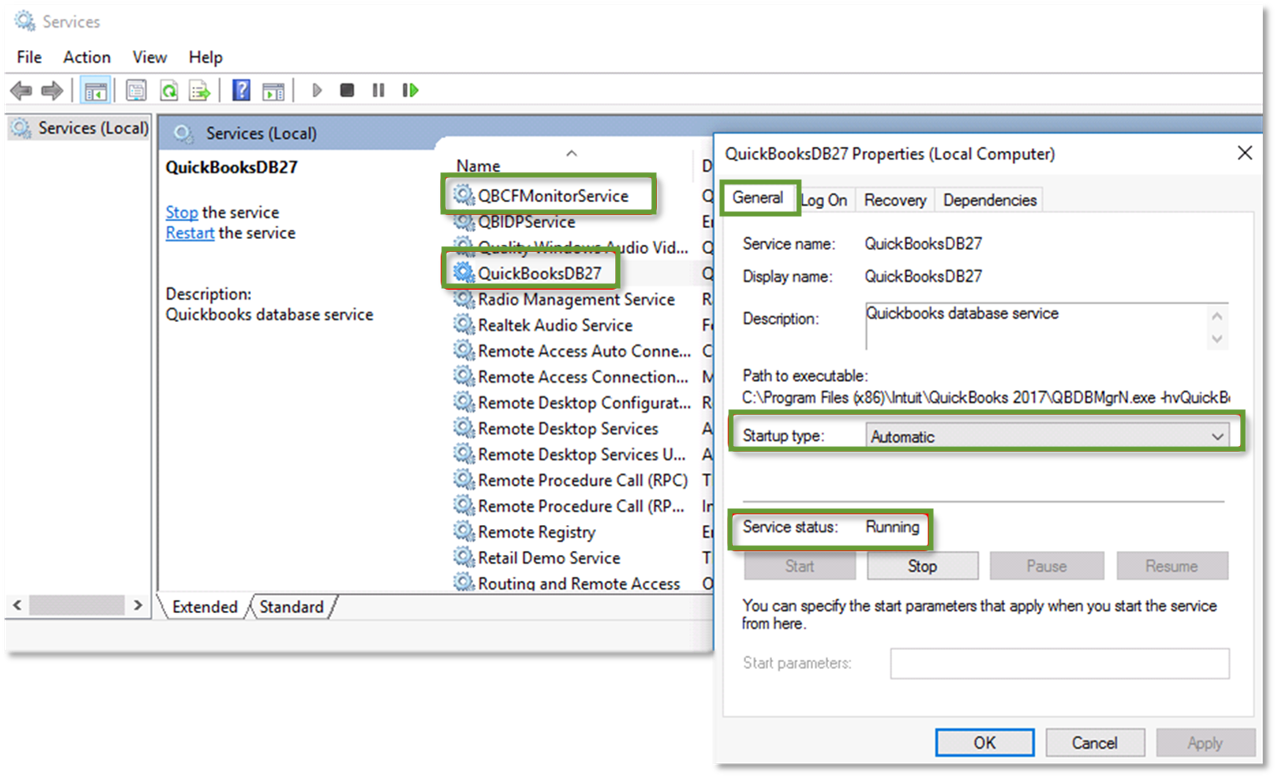
- Locate QuickBooksDBXX.
- Double-click the service.
- Set Startup type to Automatic.
- Check the service status.
- If the service is stopped, select Start.
- Open the Recovery tab.
- Set First failure, Second failure, and Subsequent failures to Restart the Service.
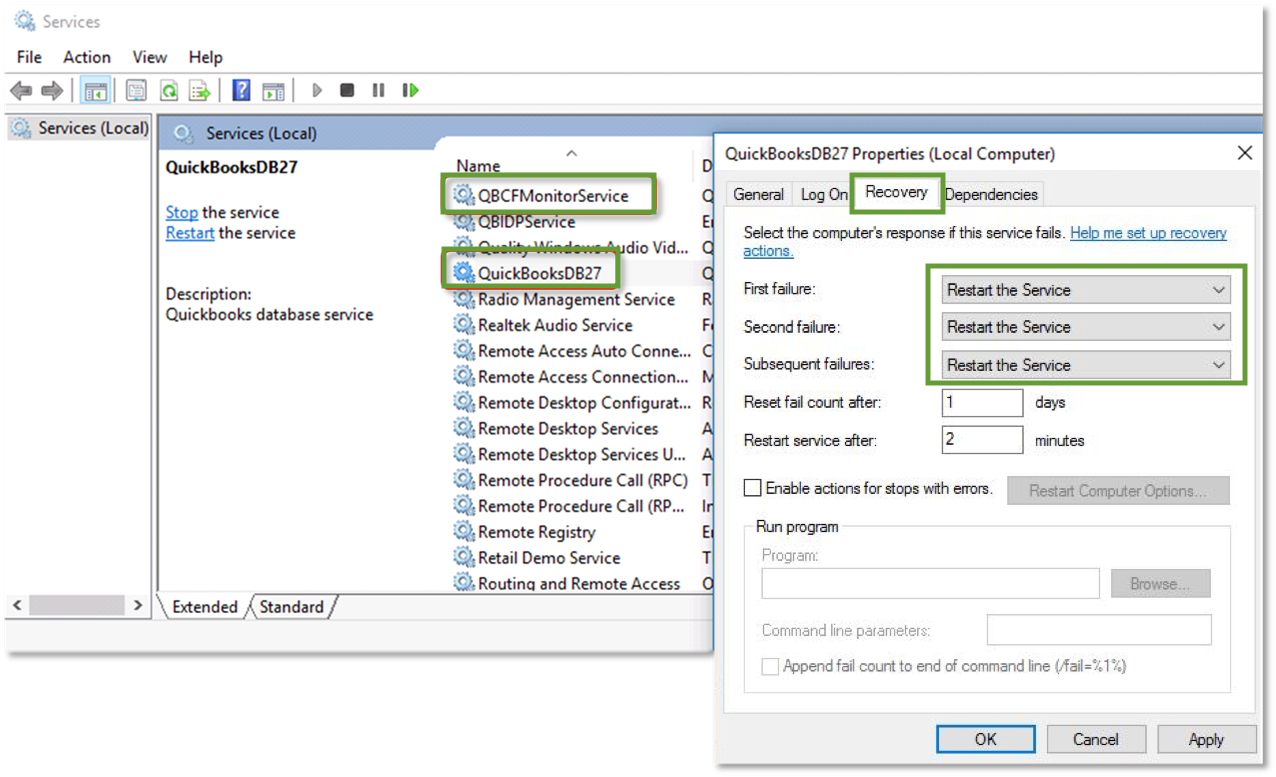
- Select Apply and then OK.
Repeat the same procedure for QBCFMonitorService.
Afterward, open QuickBooks on the workstations and select: File > Switch to Multi-user Mode
If the company file opens normally, the service configuration was preventing the network connection.
Solution 2: Give QuickBooks Services the Required Permissions
QuickBooks services may need appropriate Windows permissions to access and share company files across the network.
Make sure QuickBooksDBXX and QBCFMonitorService have the required permissions on the server.
Also verify that the folder containing the QuickBooks company file has appropriate Windows sharing and access permissions.
After updating the permissions, restart QuickBooks and test multi-user mode from each workstation.
Solution 3: Configure Windows Firewall for QuickBooks
A firewall can prevent QuickBooks workstations from communicating with the server.
To troubleshoot this issue, configure Windows Firewall to allow QuickBooks and its associated services through the network.
Make sure the appropriate QuickBooks firewall exceptions are configured for the QuickBooks versions installed on your system.
After making the changes:
- Restart QuickBooks Desktop.
- Open the company file from a workstation.
- Select File.
- Choose Switch to Multi-user Mode.
If the company file opens successfully, the firewall was likely blocking the required QuickBooks network connection.
Solution 4: Test Your Server Connection With Ping
If QuickBooks still displays H202, test whether your workstations can communicate with the server.
First, enable Network Discovery.
On the server and affected workstations:
- Open the Windows Start menu.
- Search for Network and Sharing Center.
- Select Change advanced sharing settings.
- Turn on Network discovery.
- Also enable File and printer sharing.
A. Find Your Server Name
On the server:
- Open Run from the Windows Start menu.
- Enter CMD.
- Press Enter.
- Enter ipconfig /all.
- Press Enter.
- Locate Host Name under Windows IP Configuration.
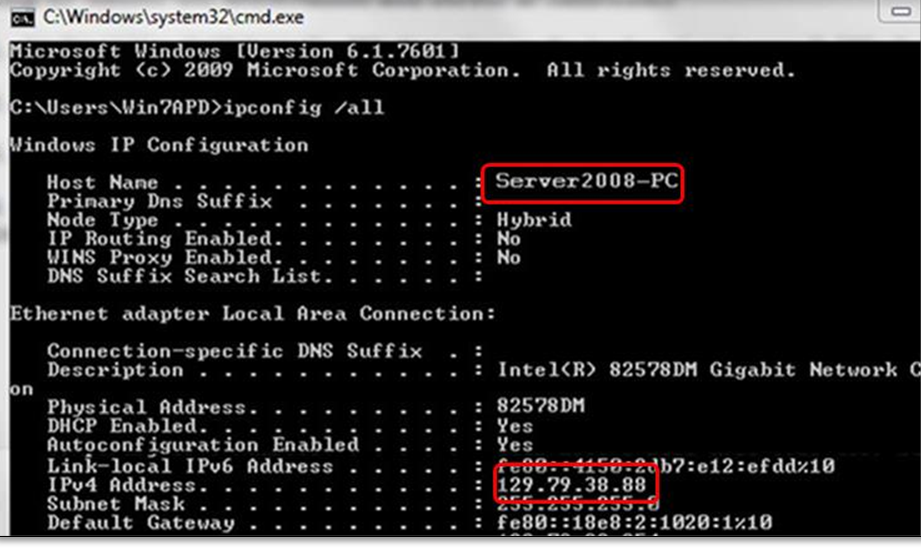
- Note the server's host name.
B. Ping the Server From a Workstation
On a workstation experiencing H202:
- Open Run.
- Enter CMD.
- Press Enter.
- Type: ping your-server-name

Replace your-server-name with the actual host name of your server.
Press Enter and review the results.
If you receive replies from the server without packet loss, the network connection is responding normally. If you experience packet loss, timeouts, or unusually slow responses, the problem may be related to your network configuration.
In that situation, consider contacting a qualified IT professional to inspect the network.
How to Fix QuickBooks Error H505, H101, and H303
QuickBooks Errors H101, H303, and H505 can occur when more than one computer is configured to host the company file.

Only the computer that stores the company file should normally act as the host.
Step 1: Disable Hosting on Workstations
On every workstation experiencing H101, H303, or H505:
- Open QuickBooks Desktop.
- Do not open the company file.
- Select File > Utilities.
- If you see Host Multi-User Access, do not select it.
- If you see Stop Hosting Multi-User Access, select it.
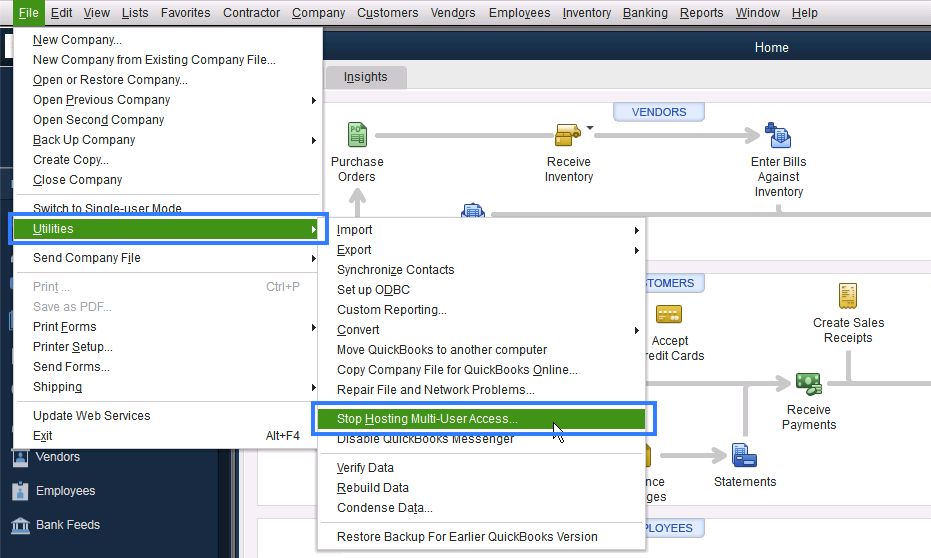
- Repeat the process on every affected workstation.
This ensures that the workstations are not attempting to host the company file.
Step 2: Enable Hosting on the Server
Now go to the computer that actually stores your QuickBooks company files.
- Open QuickBooks Desktop.
- Select File > Utilities.
- If Host Multi-User Access appears, select it.
- If Stop Hosting Multi-User Access appears, leave it unchanged.
The server should be the only computer configured to host the company file.
Additional Tips to Prevent QuickBooks H202 Error
Once you resolve the error, follow these practices to reduce the chances of recurring network problems:
- Keep QuickBooks Desktop updated.
- Install the correct QuickBooks Database Server Manager version.
- Allow QuickBooks through Windows Firewall.
- Keep the company file on a supported network location.
- Make sure QuickBooks services are running on the server.
- Avoid configuring multiple computers as hosts.
- Check network connectivity when users experience sudden connection problems.
- Maintain appropriate Windows folder-sharing permissions.
- Use QuickBooks Tool Hub when troubleshooting common QuickBooks Desktop errors.
Final Thoughts
QuickBooks Error H202 generally indicates a communication problem between a workstation and the computer hosting the company file, while H505 and related H101/H303 errors can be associated with incorrect multi-user hosting configurations.
Start by running QuickBooks Database Server Manager and QuickBooks File Doctor through the QuickBooks Tool Hub. If the problem continues, check QuickBooks services, Windows permissions, firewall settings, and network connectivity. For H505, H101, and H303, verify that only the correct server is configured for multi-user hosting.
If ping tests show packet loss or the network itself appears unstable, an IT professional may need to examine the Windows network configuration before QuickBooks can operate normally in multi-user mode.
Frequently Asked Questions
Q. How do I fix QuickBooks Error H202 when switching to multi-user mode?
First, verify that the correct computer is hosting the company file. Then run QuickBooks Database Server Manager, check QuickBooksDBXX and QBCFMonitorService, configure firewall permissions, and test the connection between the workstation and server. You can also run QuickBooks File Doctor through the QuickBooks Tool Hub.
Q. Why does QuickBooks H202 keep coming back after I fix it?
H202 can return when the underlying network or hosting problem remains unresolved. Check the QuickBooks services, firewall settings, folder permissions, Database Server Manager, and server connectivity to identify the cause.
Q. Why does QuickBooks H202 occur on only one computer?
If H202 affects only one workstation, the issue may be specific to that computer. Check its network connection, Windows Firewall, network discovery, QuickBooks installation, and ability to communicate with the server.
Q. Why can't QuickBooks find my company file over the network?
QuickBooks may not find the company file if the shared folder has incorrect permissions, the network path is unavailable, Database Server Manager has not scanned the folder, or the file is stored in an unsupported location. Verify the folder location and run a new scan with Database Server Manager.
Q. How do I fix QuickBooks multi-user mode not working?
Make sure the company file is stored on the correct host computer and that only the server is configured for multi-user hosting. Then check Database Server Manager, QuickBooks services, Windows Firewall, folder permissions, and network connectivity.
Q. How do I fix QuickBooks Error H202 on Windows 10?
On Windows 10, check that QuickBooksDBXX and QBCFMonitorService are running on the server. Also verify firewall exceptions, network discovery, folder permissions, and Database Server Manager. Run QuickBooks File Doctor if the problem continues.
Q. How do I fix QuickBooks Error H202 on Windows 11?
Start by running QuickBooks Database Server Manager and QuickBooks File Doctor through Tool Hub. Then verify hosting settings, QuickBooks services, Windows Firewall permissions, and the connection between each workstation and the server.
Q. How do I fix Error H202 if I use Windows Server 2012 Essentials R2?
If you use Windows Server 2012 Essentials R2 to host QuickBooks, install the appropriate QuickBooks Database Server Manager on the server and verify that the company-file folder is properly shared. Check QuickBooks hosting settings, required services, Windows Firewall permissions, and network connectivity between the server and workstations.
Q. How do I repair QuickBooks Error H202 on Windows Server?
To repair H202 on Windows Server, verify that QuickBooks Database Server Manager is installed and running. Make sure QuickBooksDBXX and QBCFMonitorService are active, configure the required firewall exceptions, check company-file folder permissions, and test the server connection from each affected workstation.
Q. Why does QuickBooks work in single-user mode but not multi-user mode?
If QuickBooks works in single-user mode but fails in multi-user mode, the problem is usually related to network communication, hosting, firewall configuration, or Database Server Manager rather than the basic QuickBooks installation.
Q. Can QuickBooks Error H202 occur because the company file is stored on another computer?
Yes. H202 can occur when a workstation cannot communicate correctly with the computer hosting the company file. Verify the network connection, shared-folder permissions, firewall settings, and Database Server Manager on the host computer.
Q. Why does QuickBooks Database Server Manager not detect my company file?
Database Server Manager may not detect a company file if you selected the wrong folder, the folder is inaccessible, Windows permissions are insufficient, or the file is stored in an unsupported location. Use Browse to select the folder containing the company file and run Start Scan.
Q. How do I fix QuickBooks H202 without reinstalling QuickBooks?
You usually do not need to reinstall QuickBooks to troubleshoot H202. First check the hosting settings, Database Server Manager, QuickBooks services, Windows Firewall, folder permissions, and network connection. QuickBooks Tool Hub and File Doctor can also help identify common problems.
Q. How do I fix QuickBooks H202 after changing my server computer?
Install the appropriate Database Server Manager on the new server and scan the folder containing the company file. Then verify Windows sharing permissions, firewall settings, QuickBooks services, and workstation connectivity to the new server.
Q. Why does QuickBooks H202 occur after a Windows or QuickBooks update?
An update can change firewall rules, Windows services, network settings, or application permissions. If H202 starts after an update, check QuickBooks services, firewall exceptions, hosting settings, and network connectivity.
Q. Why does QuickBooks show H202 even though all computers are connected to the same Wi-Fi?
Being connected to the same Wi-Fi does not guarantee that the computers can communicate correctly for QuickBooks. Network discovery, Windows Firewall, file-sharing permissions, router settings, and QuickBooks hosting configuration can still prevent the connection.
Q. Can I store a QuickBooks company file on a NAS device?
QuickBooks Database Server Manager does not support hosting QuickBooks company files directly on Network Attached Storage (NAS) devices. Use a supported Windows computer or server as the host.
Q. Why does QuickBooks H202 appear after moving the company file to a new folder?
Moving the company file can change its network path and Windows permissions. Make sure the new folder is shared correctly, users have the required access, and QuickBooks Database Server Manager has scanned the new folder.
Q. How do I know which computer should host QuickBooks multi-user mode?
The computer that stores the QuickBooks company file should normally act as the host. Other computers should access the company file as workstations and should not be configured to host multi-user access.
Q. Why can't my remote users access the QuickBooks company file?
QuickBooks Desktop multi-user networking is designed around the configured network environment. Users connecting from outside the local network may require a supported remote-access or hosting solution rather than a standard local multi-user configuration.
Q. Do QuickBooks H202 and H505 mean my company file is damaged?
Not necessarily. H202 and H505 are commonly associated with network communication and multi-user hosting problems. If the company file also produces errors when opened locally, investigate the company file separately.
Q. Why is QuickBooks H202 not fixed after running File Doctor?
File Doctor may not resolve H202 when the underlying issue involves firewall restrictions, incorrect hosting, Windows permissions, inactive services, or a network connection problem. Continue with the manual server and network troubleshooting steps.
Q. How do I configure QuickBooks Database Server Manager for multi-user mode?
Install Database Server Manager on the computer hosting the company files. Open the tool, select the company-file folder, and choose Start Scan. Then verify that the required QuickBooks services are running and that workstations can access the server.
Q. Why does QuickBooks say the server is not reachable?
The server may be offline, the network connection may be unavailable, or Windows Firewall may be blocking communication. Check the server's network connection and use the ping command from the affected workstation to test connectivity.
Q. Can QuickBooks Error 6190 and 816 be related to multi-user mode?
Yes. These errors can appear when QuickBooks encounters a mismatch or access problem involving the company file and its associated files. If the error occurs in a multi-user environment, verify the network setup and make sure users are accessing the company file from the correct host.