Every spreadsheet person eventually hits the same wall. You build a clean sheet in Google Sheets, and then some other system, a CRM, an accounting tool, a database, a script, refuses to take it directly. It wants a CSV file. This guide walks through every practical way to convert Google Sheets to CSV, including the parts most tutorials skip: what happens to your formulas, why leading zeros vanish, how to handle a file with ten tabs, and how to grab a live CSV link that updates automatically.
I have exported hundreds of sheets over the years for client imports, ecommerce catalogs, and finance reports, and the small details are usually what break an import, not the big steps. So this guide spends more time on those details than most.
What CSV actually is, in plain terms
CSV stands for comma separated values. It is a plain text file where each line is a row, and each value in that row is separated by a comma. There is no formatting, no color, no formula, no chart. Just data.
Google Sheets is a full spreadsheet application. CSV is a stripped-down data container. When you convert one into the other, you are not just changing a file extension. You are removing everything that makes a spreadsheet a spreadsheet and keeping only the values.
That tradeoff is exactly why CSV works everywhere. Databases, CRMs, ecommerce platforms, accounting software, and data pipelines all read CSV because it has no proprietary structure to interpret. It is the closest thing spreadsheets have to a universal language.
Method 1: The standard download (best for a one-time export)
This is the method built into Google Sheets itself, and it covers most people's needs.
- Open the Google Sheet and click into the specific tab you want to export. Google only exports the tab you are currently viewing.
- Go to File, then Download, then choose Comma Separated Values (.csv).
- The file downloads immediately to your computer, named after the sheet tab.
This works well for a single export, but it has three limitations worth knowing before you rely on it: it only exports one tab at a time, it does not preserve formulas, and it does not give you a live link that stays current.
Method 2: The CSV export link (best for live or repeated exports)
Google Sheets has a documented export URL format that pulls a specific sheet as CSV directly from its address. This is the method most beginner guides skip entirely, but it is the one I reach for most often because it stays live.
The format looks like this:
https://docs.google.com/spreadsheets/d/SPREADSHEET_ID/export?format=csv&gid=SHEET_GIDYou get the SPREADSHEET_ID from the sheet's URL, and the gid from the number after gid= when you click on a specific tab. Paste that constructed link into a browser, and it downloads the CSV directly. Paste it into a script, and you get a live feed of that sheet's data every time it runs.
A few things to know before using this method for real work:
The sheet needs to be shared as "Anyone with the link can view," or the export URL will return an error page instead of your data. That also means the data is technically public to anyone who has the link, so this is not the right method for private customer data, financial records, or anything confidential. Test with sample data first if you are unsure.
Because the CSV export link always reads the live sheet, it updates automatically whenever someone edits the source. That makes it useful for dashboards and recurring imports, but it also means the CSV can change underneath you if someone edits the sheet at the wrong moment. For anything that feeds a scheduled process, pull the export at a consistent time and validate the row count afterward.
Method 3: Paste and convert (best when you only need part of the sheet)
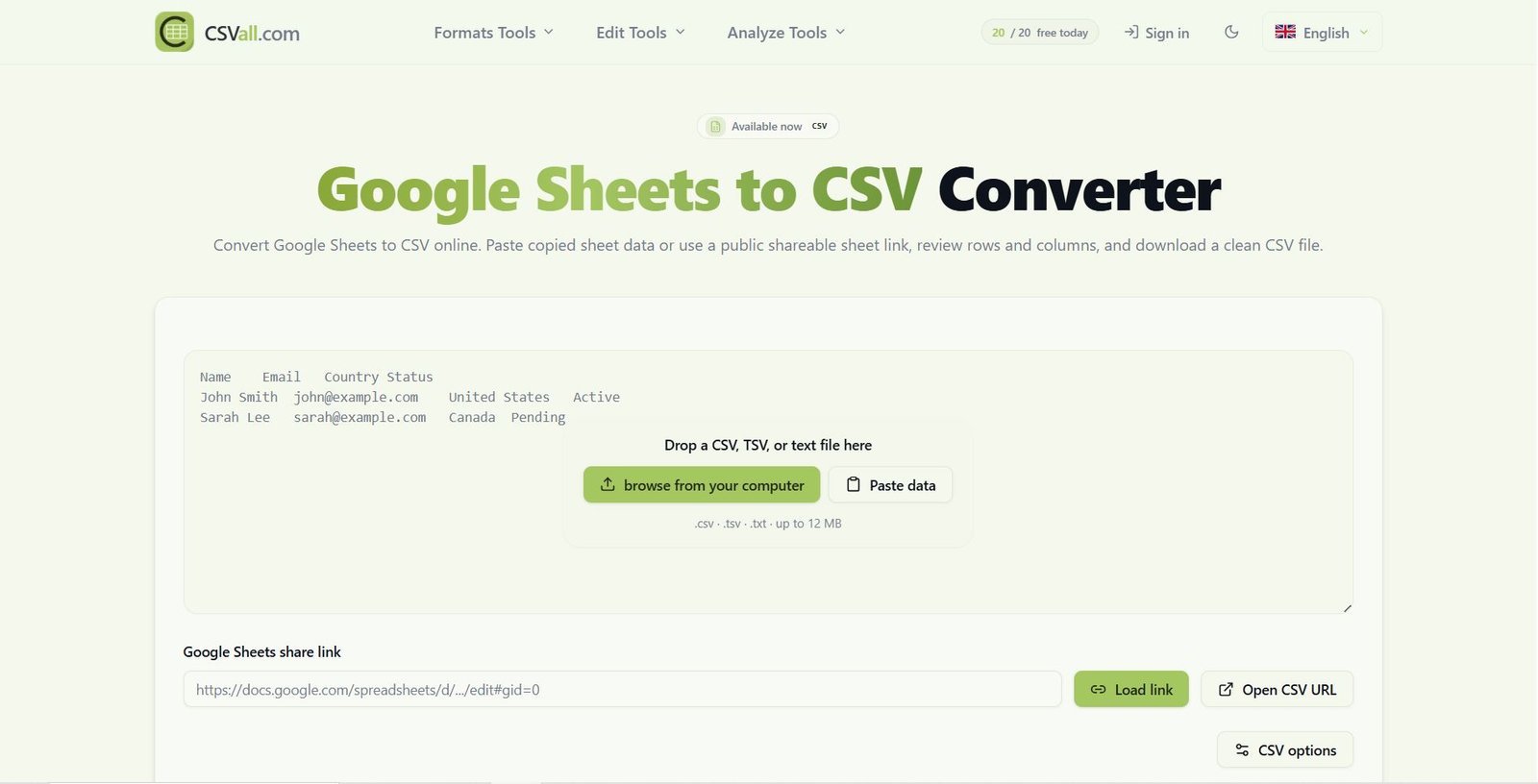
Sometimes you do not want the whole sheet, just a selection of rows and columns. In that case, select the range in Google Sheets, copy it with Ctrl+C or Cmd+C, and paste it into a converter that accepts pasted data, such as the Google Sheets to CSV converter on CSVall.
Here is the detail most people never learn: Google Sheets does not copy data as CSV. It copies as tab-separated text. If you paste that directly into a plain text file and save it with a .csv extension, any comma that already exists inside a cell, like "Smith, John" in a name field, will silently split into two columns when the file is read back. A proper converter re-quotes fields that contain commas and rebuilds the data as valid comma-separated values instead of just swapping tabs for commas. This is one of the most common causes of a "misaligned columns" import error, and it is almost never mentioned in basic tutorials.
What happens to formulas and formatting
CSV cannot store spreadsheet features. When you convert Google Sheets to CSV, colors, fonts, comments, charts, filters, pivot tables, merged cells, and multiple tabs all disappear. That is expected, since CSV was never designed to hold them.
Formulas are a bit more nuanced. A formula cell exports as its calculated result, not the formula itself. So =SUM(A1:A10) becomes whatever number that formula produced at the moment of export. If that number depends on something that changes, like TODAY() or a linked sheet, check the exported value before trusting it downstream. I have seen finance sheets export "correctly" but with stale formula results because the sheet had not recalculated before the download.
Handling a sheet with multiple tabs
A Google Sheets file can hold dozens of tabs, but a single CSV file holds exactly one table. There is no built-in way to export every tab into one combined CSV, because CSV has no concept of separate sheets within a file.
The practical approach is to export each tab separately, one CSV per tab, and keep them as individual files. Trying to force multiple tabs into a single CSV by stacking them usually corrupts the header row and confuses whatever system reads the file next. If you genuinely need everything in one file, that is a job for JSON or a database export, not CSV.
Why leading zeros disappear
This one catches almost everyone at least once. If a column holds ZIP codes, product IDs, or account numbers that start with a zero, like 00423, Google Sheets treats that value as a number rather than text once it hits CSV. Numbers do not keep leading zeros, so 00423 becomes 423, and the import on the other end may reject it or misread it entirely.
The fix happens before export, not after. Format the column as Plain text in Google Sheets, or wrap the values as text before converting, so the CSV keeps the zeros exactly as written. Checking this one column has saved me more re-uploads than any other single step in this whole process.
Encoding and special characters
Google Sheets exports CSV using UTF-8 by default, which correctly handles accented letters, non-Latin scripts, and most special characters. Problems usually appear on the receiving end, not the export end. Older systems, particularly some legacy Windows tools, expect UTF-8 with a byte order mark (BOM) or a different encoding entirely, and without it, accented characters can render as garbled symbols.
If an import shows broken characters where accents or non-English text should be, the fix is almost always to re-export or convert with UTF-8 BOM enabled rather than plain UTF-8. This is a small setting, but it explains a large share of "why does my CSV look broken" support tickets.
Google Sheets to CSV by workflow
Ecommerce. Before uploading a product catalog, check SKUs, prices, stock counts, and category names for consistency, and confirm the CSV header row matches exactly what your store platform expects. A mismatched header name is a common cause of failed bulk imports.
CRM and marketing. Map columns like First Name, Last Name, Email, and Company before import, and double check phone numbers and postal codes for the leading zero issue described above.
Developers and databases. A CSV export works well as seed data or a one-time migration source. For anything recurring, the live CSV export link or the Sheets API is more reliable than a manual download, since both can be automated inside a script or pipeline.
Finance and accounting. Recalculate the sheet before exporting so formula results are current, and review date formats carefully, since Google Sheets and accounting software do not always agree on how a date like 03/04/25 should be read.
A short checklist before you convert
- Use a single, clear header row at the top of the tab you are exporting.
- Remove blank rows, merged cells, and stray notes that sit outside the main table.
- Format ID, ZIP code, and account number columns as plain text before export.
- Recalculate formulas so exported values are current.
- Confirm the tab you are viewing is the one you actually want, since only the active tab downloads.
- Review the finished CSV for row count, encoding, and comma-separated fields before uploading it anywhere.
Google Sheets to CSV converter: frequently asked questions
What is Google Sheets to CSV conversion? It is the process of turning spreadsheet data from Google Sheets into a plain CSV file that other systems, such as databases, CRMs, or accounting software, can read directly.
Can I download a CSV directly from Google Sheets without another tool? Yes. Use File, then Download, then Comma Separated Values (.csv), while viewing the tab you want to export.
Does CSV keep Google Sheets formulas? No. CSV stores the calculated result of a formula, not the formula itself.
Can I export multiple Google Sheets tabs into one CSV file? Not directly. CSV holds one table per file, so each tab needs its own separate export.
Why do leading zeros disappear when I convert to CSV? Google Sheets treats the value as a number by default, and numbers drop leading zeros. Format the column as plain text before exporting to keep them.
Can I get a CSV link that updates automatically? Yes, using the Google Sheets export URL format described above, as long as the sheet is shared so the link can be viewed.
Can I import the resulting CSV back into a database? Yes. CSV is one of the most widely supported formats for importing into MySQL, PostgreSQL, SQL Server, and SQLite, provided the headers and data types match what the database expects.
Ready to convert a sheet right now? Paste your data or drop in a shareable link with the Google Sheets to CSV converter. It runs in your browser, checks the table before you download, and gives you control over delimiter, UTF-8 BOM, and line endings.