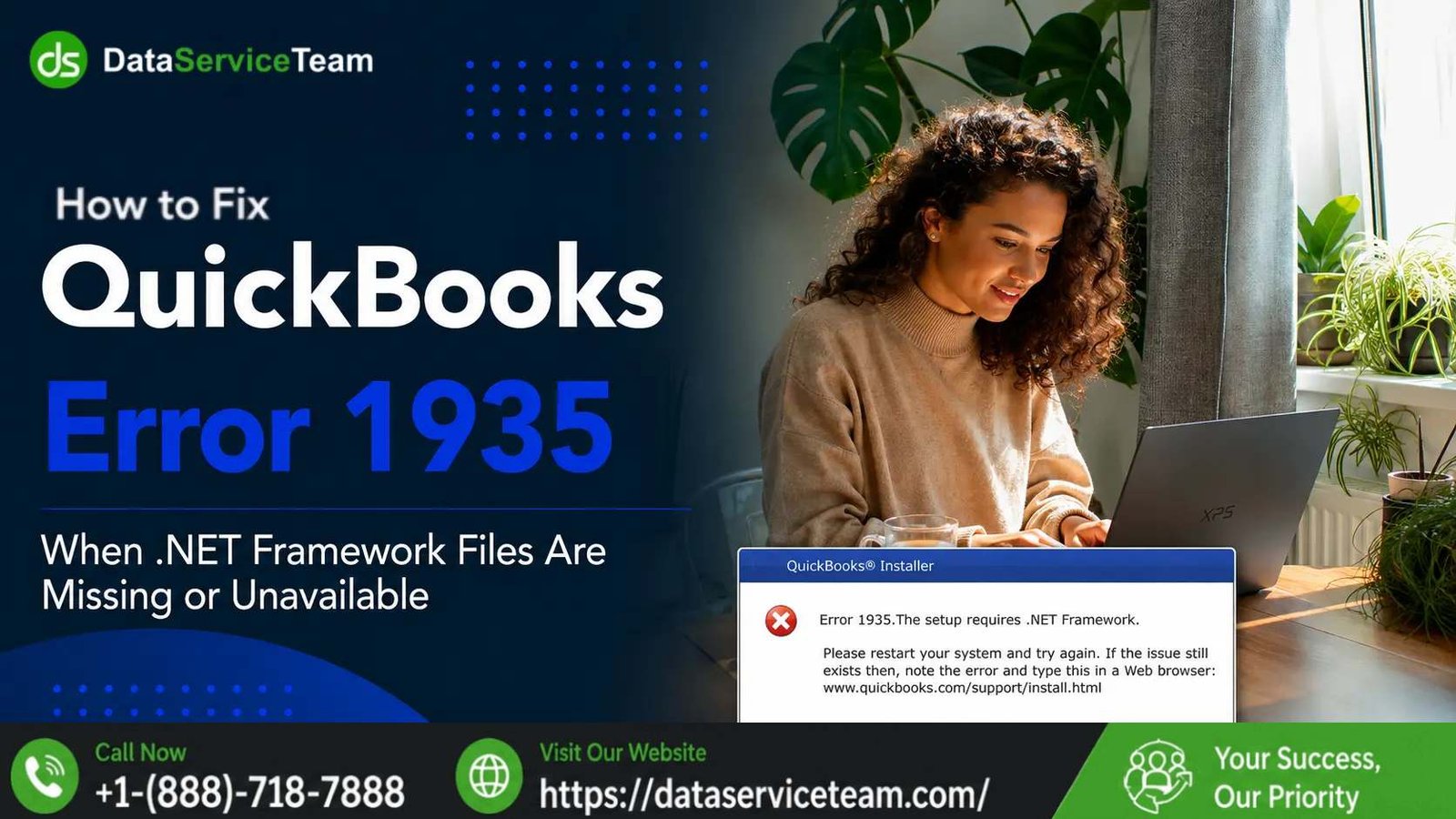
QuickBooks Error 1935: 10 Proven Fixes for Installation Failures
QuickBooks Error 1935 can interrupt a Desktop installation, update, or repair when Windows cannot properly register a required assembly component. The message may mention an assembly component, Microsoft .NET Framework, Visual C++, or another Windows component.
The important point is that Error 1935 is generally associated with the Windows installation environment rather than the company file itself. Common triggers include damaged Windows components, incomplete updates, conflicting background services, security software interference, or problems with required Microsoft runtimes.
This guide provides a structured troubleshooting path, beginning with low-risk fixes and progressing to more advanced options. The goal is to identify the underlying Windows component instead of repeatedly reinstalling QuickBooks without addressing the cause.
Quick Answer: How Do I Fix QuickBooks Error 1935?
If you need the shortest troubleshooting path, try these steps in order:
- Restart Windows and retry the installation.
- Run the installer as Administrator.
- Check and complete pending Windows updates.
- Repair or refresh the required .NET Framework components.
- Repair Microsoft Visual C++ Redistributables if the error references Microsoft.VC.
- Use QuickBooks Tool Hub's Install Diagnostic Tool.
- Try Windows Selective Startup to eliminate third-party conflicts.
- Temporarily test whether security software is interfering.
- Run DISM and SFC to repair Windows system components.
- Use a clean installation only after the earlier solutions have failed.
Important: Do not modify the Windows Registry or remove system components unless you understand the consequences or have appropriate technical assistance.
Chapter 1: What Is QuickBooks Error 1935?
QuickBooks Error 1935 is an installation-related error that can occur when Windows cannot install or register an assembly required by the application.
A typical message may look similar to:
Error 1935. An error occurred during the installation of assembly component.
The exact wording can vary depending on the Windows version, QuickBooks release, and component involved.
Common Symptoms
You may notice one or more of these behaviors:
Does Error 1935 Damage the Company File?
Normally, no. Error 1935 occurs during the Windows installation or component-registration process. It does not, by itself, indicate corruption of your .QBW company file.
Nevertheless, if you already have important financial data on the computer, maintaining a recent backup is a sensible precaution before performing major software repairs.
Chapter 2: Why Does QuickBooks Error 1935 Occur?
The error is usually connected to the Windows components required during installation.
Common Causes
Read the Assembly Name Carefully
The component named in the error can provide a useful troubleshooting clue.
For example:
- Microsoft.VC... → investigate Microsoft Visual C++ components.
- .NET or System... → investigate .NET Framework.
- MSXML references → investigate the XML components required by the installation.
- No obvious component → investigate Windows Installer, pending updates, permissions, and system integrity.
This approach is more efficient than immediately performing a complete reinstall.
Chapter 3: Before You Start Troubleshooting
Before changing Windows components, take a few precautions.
Recommended Preparation
- Save your work.
- Close QuickBooks and other applications.
- Make sure you have Windows administrator access.
- Keep your QuickBooks license and product information available.
- If QuickBooks is already installed, create a current company-file backup.
- Restart Windows if an update has recently been installed.
- Avoid making several major system changes simultaneously.
Expert tip: Change one thing at a time whenever possible. This makes it easier to determine which solution actually resolved the problem.
Chapter 4: 10 Proven Fixes for QuickBooks Error 1935
Method 1: Restart Windows and Run the Installer as Administrator
This is the safest place to begin.
A pending Windows installation or locked process can prevent another application from registering its required components.
Steps
- Save your work.
- Restart Windows.
- Wait until Windows finishes loading.
- Locate your QuickBooks installer.
- Right-click the installer.
- Select Run as administrator.
- Follow the installation instructions.
If the installation completes, no further repair is necessary.
Method 2: Check Windows for Pending Updates
A partially installed Windows update can interfere with another installation.
Steps
- Open Settings.
- Select Windows Update.
- Click Check for updates.
- Install available updates.
- Restart the computer if prompted.
- Check Windows Update again.
- Retry the QuickBooks installation.
Why This Matters
QuickBooks relies on Windows components and Microsoft runtimes. Keeping Windows current can eliminate compatibility problems caused by missing system updates.
Method 3: Repair .NET Framework Components
If the Error 1935 message references .NET or a related Microsoft assembly, investigate .NET Framework first.
On supported Windows versions, .NET Framework components are integrated into the operating system, so the available repair options can vary.
Start With Windows Features
- Open Control Panel.
- Select Programs and Features.
- Select Turn Windows features on or off.
- Review the available .NET Framework options.
- If Windows reports a problem with a component, follow the repair instructions provided by Windows.
- Restart the computer.
- Retry the installation.
Important: Do not randomly remove .NET Framework components that Windows requires. The exact options differ between Windows versions.
Method 4: Repair Microsoft Visual C++ Redistributables
If the error identifies an assembly beginning with Microsoft.VC, Microsoft Visual C++ Redistributable packages deserve attention.
Steps
- Open Control Panel.
- Go to Programs and Features.
- Review the installed Microsoft Visual C++ Redistributable packages.
- Select the relevant package.
- Choose Change or Repair, if available.
- Complete the repair.
- Restart Windows.
- Try the QuickBooks installation again.
If a particular runtime is missing or damaged, install the appropriate supported Microsoft package rather than downloading a modified installer from an unknown source.
Method 5: Run QuickBooks Install Diagnostic Tool
QuickBooks Tool Hub can provide useful automated troubleshooting for installation-related problems.
Steps
- Close QuickBooks.
- Open QuickBooks Tool Hub.
- Select Installation Issues.
- Choose QuickBooks Install Diagnostic Tool.
- Allow the diagnostic process to complete.
- Restart Windows when prompted.
- Retry the QuickBooks installation.
The diagnostic process may take several minutes.
When to Use It
This method is particularly useful when:
- QuickBooks will not install.
- A previous installation failed.
- Windows components appear damaged.
- Installation errors continue after restarting.
Method 6: Perform a Selective Startup
If another application is interfering with the installer, Windows Selective Startup can help isolate the conflict.
Steps
- Press Windows + R.
- Enter msconfig.
- Press Enter.
- On the General tab, select Selective startup.
- Review the startup options.
- On the Services tab, select Hide all Microsoft services.
- Disable appropriate third-party services.
- Restart Windows.
- Retry the installation.
After troubleshooting, return Windows to its normal startup configuration.
Important
Do not disable Microsoft services indiscriminately. If you are unsure which service is safe to change, stop and seek qualified technical assistance.
Method 7: Temporarily Test Security Software Interference
Antivirus and endpoint-security software can sometimes interfere with installers, particularly when setup attempts to create or modify system components.
Safer Troubleshooting Approach
- Make sure the installer was obtained from a trusted source.
- Check your security software's event or quarantine history.
- Look for blocked installation activity.
- If your security policy allows it, temporarily pause real-time protection for the installation test.
- Run the installer.
- Immediately restore protection after testing.
Do not leave antivirus protection disabled as a permanent solution.
For business computers managed by an IT department, follow the organization's security policy rather than changing protection settings yourself.
Method 8: Run DISM and System File Checker
Windows system corruption can interfere with installation.
Two built-in Windows utilities can help check the operating system:
Run DISM
Open Command Prompt as Administrator and run:
DISM /Online /Cleanup-Image /Restore Health
Allow the operation to finish.
Then Run SFC
sfc /scan now
Wait until the scan reaches completion.
Afterward:
- Restart Windows.
- Retry the QuickBooks installation.
Why Use Both?
DISM can repair the Windows component store, while SFC checks protected Windows system files. They address different layers of Windows integrity.
Method 9: Check the Windows Installer Service
If Windows Installer itself is experiencing problems, applications may fail during setup.
Steps
- Press Windows + R.
- Type services.msc.
- Press Enter.
- Find Windows Installer.
- Review its status.
- If appropriate, start or restart the service.
- Retry the QuickBooks installation.
Do not change unrelated services while troubleshooting.
Method 10: Perform a Clean Installation
A clean installation should be considered a last-resort software repair, not the first response to Error 1935.
Before proceeding:
- Back up your company file.
- Confirm your license/product information.
- Close all applications.
- Make sure you know which QuickBooks version you need.
- Verify that Windows and required components are functioning correctly.
General Process
- Open QuickBooks Tool Hub.
- Select Installation Issues.
- Choose the available clean-installation option.
- Follow the prompts for your QuickBooks version.
- Restart Windows.
- Reinstall QuickBooks.
- Open your company file.
- Verify that your financial data is accessible.
A clean installation replaces application components, but it should not be treated as a substitute for diagnosing a damaged Windows environment.
Chapter 5: Match the Error Message to the Solution
A useful troubleshooting strategy is to use the assembly name as a clue.
This can significantly reduce unnecessary troubleshooting.
Chapter 6: Real-World Troubleshooting Patterns
Scenario 1: Error After a Windows Update
Situation: A user installed a Windows update and subsequently received Error 1935 while installing QuickBooks.
Troubleshooting approach:
- Restarted Windows.
- Checked Windows Update for additional pending updates.
- Installed remaining updates.
- Restarted again.
- Ran the QuickBooks installer as Administrator.
Outcome: The installation completed after the pending Windows installation process was resolved.
Scenario 2: Microsoft.VC Assembly Error
Situation: The error message specifically referenced a Microsoft.VC assembly.
Troubleshooting approach:
- Identified the assembly reference.
- Reviewed Microsoft Visual C++ Redistributable packages.
- Repaired the applicable runtime.
- Restarted Windows.
- Retried installation.
Lesson: The assembly name provided a more useful diagnostic clue than repeatedly reinstalling QuickBooks.
Scenario 3: Installation Blocked by Security Software
Situation: Installation consistently stopped while registering system components.
Troubleshooting approach:
- Checked security software logs.
- Identified blocked installer activity.
- Followed the organization's security policy to allow the legitimate installer.
- Completed installation.
- Restored normal security protection.
Lesson: Security software should be investigated before permanently changing Windows permissions.
Chapter 7: What Not to Do
Some troubleshooting advice can create additional problems.
Avoid These Mistakes
Don't repeatedly reinstall QuickBooks without identifying the failed Windows component.
Don't delete random Registry keys.
Don't permanently disable antivirus protection.
Don't download modified DLL or system files from unknown websites.
Don't disable essential Windows services without understanding their purpose.
Don't assume Error 1935 means your company file is damaged.
A structured diagnosis is safer and usually more efficient.
Chapter 8: Prevention Tips
Frequently Asked Questions
1. What is QuickBooks Error 1935?
QuickBooks Error 1935 is an installation-related Windows error that occurs when a required assembly or Windows component cannot be installed or registered correctly.
2. What causes Error 1935?
Common causes include .NET Framework problems, Visual C++ runtime issues, pending Windows updates, security software interference, Windows Installer problems, and corrupted system components.
3. What is the fastest fix for Error 1935?
Start by restarting Windows, completing pending updates, and running the QuickBooks installer as Administrator. If the error continues, identify the assembly named in the message and troubleshoot that component.
4. Does Error 1935 damage my QuickBooks company file?
Error 1935 is primarily an installation/component problem and does not inherently mean that your .QBW company file is damaged. Maintaining a recent backup is still recommended before major repairs.
5. How do I fix Error 1935 caused by Visual C++?
If the error references Microsoft.VC, review the installed Microsoft Visual C++ Redistributables and use the available Repair option for the relevant package.
6. Can Windows updates cause Error 1935?
Yes. A pending, incomplete, or problematic Windows update can interfere with another application's installation. Check Windows Update and restart before retrying.
7. Can antivirus software cause Error 1935?
Security software can sometimes interfere with legitimate installers or component registration. Review security logs and follow your security policy before temporarily changing protection settings.
8. Should I edit the Windows Registry to fix Error 1935?
Registry editing should not be a first-line solution. Incorrect changes can cause additional Windows problems. Use built-in repair tools first and seek qualified technical assistance for advanced registry work.
9. Can QuickBooks Tool Hub fix Error 1935?
The Install Diagnostic Tool in QuickBooks Tool Hub can help identify or repair certain installation-related problems. However, Error 1935 may originate from Windows components that require separate troubleshooting.
10. What should I do if none of these fixes work?
If Error 1935 continues after Windows updates, component repairs, diagnostics, and system-integrity checks, the problem may involve deeper Windows configuration or component corruption. At that stage, professional Windows and QuickBooks troubleshooting may be appropriate.
Conclusion
QuickBooks Error 1935 usually indicates that Windows could not successfully install or register a required component during QuickBooks setup. The most effective approach is to identify the assembly named in the error and troubleshoot the corresponding Windows component rather than repeatedly reinstalling the accounting software.
Start with a restart and Windows Update, then investigate .NET Framework or Visual C++ depending on the error message. QuickBooks Tool Hub's Install Diagnostic Tool, Selective Startup, Windows system-repair commands, and a clean installation provide progressively deeper troubleshooting options.
Most importantly, protect your company data with regular backups and avoid risky Registry changes unless you have the appropriate technical expertise.
Need Expert Help?
If QuickBooks Error 1935 continues after the recommended troubleshooting steps, the Data Service Team can assist with advanced QuickBooks installation and Windows-component diagnostics.
📞 Data Service Team: +1-(888)-718-7888
Tags : QuickBooks Error 1935 QuickBooks Error 1935 fix QuickBooks installation error 1935 Error 1935 during installation QuickBooks installation failure QuickBooks .NET Framework error QuickBooks Visual C++ error QuickBooks Install Diagnostic Tool QuickBooks Tool Hub QuickBooks installation problems