PST to MBOX Export Checklist: How to Safely Move Outlook Emails to MBOX Format
By Megan Watts 25-09-2026 6
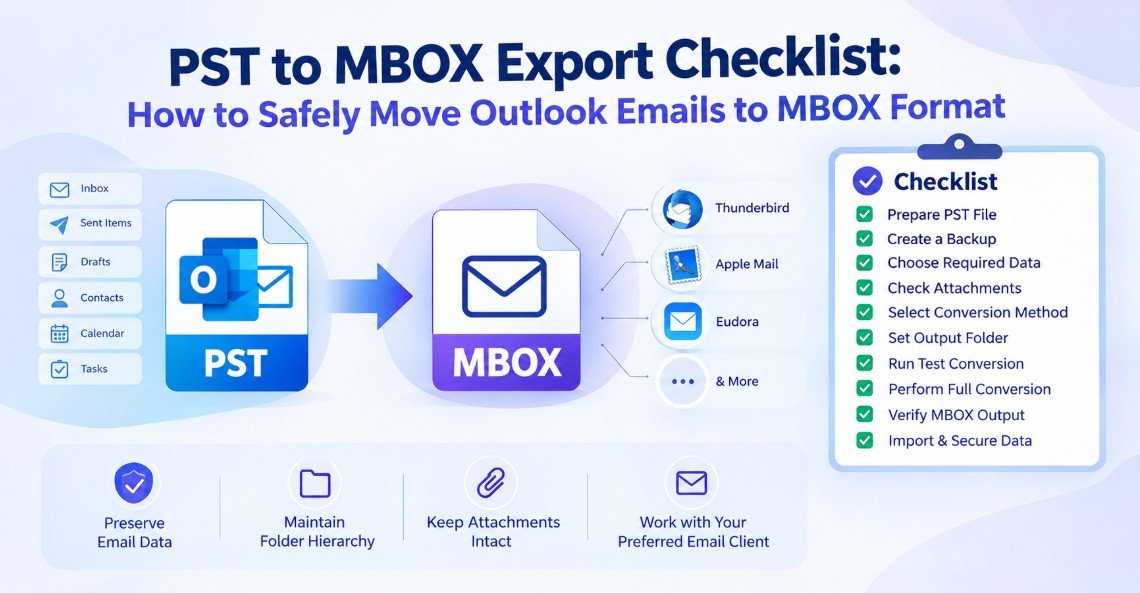
When you migrate from Outlook to an email client that supports MBOX format (Thunderbird, Apple Mail, or other supported programs), it is logical to migrate Outlook emails from PST to MBOX format. Migration is not just a matter of converting files. Users need to create a source PST, choose the required mailbox data, save the valuable email information, and check the resultant MBOX files.
This PST to MBOX export checklist provides a practical workflow for migrating Outlook emails securely with reduced chances of email, attachment or folder data loss.
1. Preparing the Outlook PST File
Before you start the export, find the PST file that has the emails you want to move.
To-do list:
☐ Find the right PST file.
☐ Check the size of the PST file.
☐ Ensure the required emails are available.
☐ Identify personal and custom folders.
☐ Delete duplicate data if not required.
☐ Convert PST but leave the original PST intact.
If there are several PST files, specify which PST file needs to be converted. This prevents accidental migration of an out-of-date or unrelated archive.
2. Make a PST backup
Always back up before you start a large-scale email migration.
Backup checklist:
☐ Copy the original PST to another location.
☐ Ensure the backup is openable/accessible.
☐ Do not change the original PST.
☐ Place the backup on a secure drive or other authorized storage location.
☐ Hold the backup until the MBOX output is verified.
Having a backup offers an additional recovery choice in case the conversion fails or if the created MBOX files require further manipulation.
3. Identify the Data Needed
Not all migrations need the entire PST. Determine if you need all the mailbox folders or only specific email data.
The review is as follows:
☐ Inbox
☐ Mail sent
☐ Drafts
☐ Deleted Items
☐ Custom folders
☐ Archive folders
☐ Attachments to emails
☐ Important discussions
Selective conversion can help reduce unwanted output and can make the resulting MBOX data easier to organize.
4. Review the email’s content and attachments
Attachments and email properties can be important for business, personal and archival purposes.
Be sure to find messages with: before conversion
☐ Documentation
☐ Pictures
☐ Spreadsheets
☐ PDF’s
☐ Inserted content
☐ Relevant links
5. Choose the Correct PST to MBOX Converter
The conversion method must be based on the size and complexity of the PST. Manual methods are viable for some limited scenarios, but manually managing large PST archives or multiple folders can be time-consuming.
A standalone converter can make life easier by enabling users to browse PST files, preview mailbox contents and export desired data to MBOX format.
Users looking for a dedicated migration workflow can use GainTools PST to MBOX Converter to convert Outlook PST data to MBOX format for use with compatible email clients.
Before you get started, make sure that the solution you select supports:
☐ PST file selector
☐ Multiple folders
☐ Selective conversion
☐ Email attachments
☐ File organization
☐ E-mail features
☐ Preview feature
☐ Batch processing
☐ MBOX output
6. Make the Destination Folder
Select the destination location for the converted MBOX files before the migration.
Output checklist:
☐ Create folder for destination.
☐ Ensure that you have sufficient storage space.
☐ Name output folders in a meaningful way
☐ Separate source PST files from MBOX files.
☐ Do not overwrite existing MBOX data.
☐ Organize output by mailbox, department, project or account, as required.
A clean output structure helps to import the converted data into the target email client.
7. Conduct a Test Conversion
If you are working with a large PST archive, it is advisable to run a small test conversion first.
Choose a sample that has different types of emails such as:
☐ Regular emails
☐ Messages with attachments
☐ Emails in HTML format
☐ Emails in user-created folders
☐ Massive e-mail chains
☐ Archive older messages
Open the resulting MBOX data in the email client you are going to use and verify that the messages are appearing correctly.
8. Export Complete PST to MBOX
If the tests are satisfactory, convert to full size.
In process:
☐ Leave the source PST available.
☐ Don't unnecessarily interrupt the conversion.
☐ Check available disk space
☐ Check conversion status.
☐ Tick off any skipped or failed items.
☐ Do not change the source data during conversion.
For large PST files, the conversion may take longer, depending on the amount of mailbox content and attachments being processed.
9. Check the MBOX Result
Never count a migration as complete right after conversion. The key is verification.
Validation checklist:
☐ Created MBOX files successfully.
☐ Expected folders are there.
☐ Email counts are fairly consistent.
☐ The message content is readable.
☐ Sender and recipient information is available.
☐ Dates and topics are displayed correctly.
☐ Attachments are available.
☐ Important e-mails can be opened.
☐ Folder organization is maintained where relevant.
Compare multiple converted emails with their original PST versions, not just one email.
10. Import and Protect Converted Data
Check the MBOX files and then import the MBOX files into the target email client according to the import process supported by the target email client.
And finally:
☐ Save a copy of the verified MBOX files.
☐ Protect them
☐ Limit access to sensitive email.
☐ Leave the original PST until migration has been confirmed.
☐ Document migration date and output location
☐ Test import of key email(s)
Conclusion
To convert PST to MBOX securely, you need to prepare it properly, select the files carefully, convert them appropriately, and verify them thoroughly. With this checklist, users can reduce common migration issues and create a more organized MBOX archive.
The trick is to save the original PST file, locate the data you want, test the conversion, verify messages and attachments, and then complete the migration. GainTools PST to MBOX Converter offers a dedicated workflow to migrate PST mailbox data to MBOX format if you have larger or structured Outlook archives.
Tags : software technology pst to mbox