OLM to PST Conversion: Follow This Checklist to Convert OLM Files Securely into PST Format
By alanavillegas 13-10-2026 1
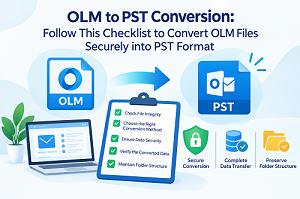
Introduction
Since the mailbox file formats for Outlook for Mac and Outlook for Windows are different, you need to plan the migration of mailbox data from Outlook for Mac to Outlook for Windows. Outlook for Mac saves mailbox content to OLM files, while Outlook for Windows uses PST files to import and manage mailbox items. Compatibility problems, partial transfers and trouble identifying important emails can result from unintended conversions.
A systematic checklist assists users in preparing their files, selecting the most suitable conversion method and validating the converted data before finishing the migration.
Pre-Conversion Checklist: Prepare Your OLM Files
Before you begin the conversion process, check your source files for organization and condition.
□ Check OLM File Availability: Locate the exported OLM files and ensure they are accessible from your computer.
□ Back Up Your Files: Keep a duplicate copy of your original OLM files stored elsewhere. This gives you a recovery option if the conversion process encounters complications.
□ Check the Mailbox Contents: Determine which emails, attachments and folders need to be moved. This can help you determine whether the converted PST contains the expected mailbox data.
□ Check Free Space: Make sure the destination drive has enough free space for the output PST files and temporary conversion data.
□ Check Outlook Compatibility: Ensure that the Outlook version on your Windows machine is compatible with the PST file you want to import.
Method Selection Checklist: Choose a Suitable Approach
The choice of a conversion technique depends on the available applications, technical requirements and the volume of mailbox data to be converted.
| Conversion Method | Things to Remember |
| Manual migration process | Requires access to suitable email applications and may involve several intermediate steps.
|
| Dedicated conversion software | Depending on its supported features, conversion software can convert OLM files directly to PST format and simplify the process. |
If you have a small mailbox and the right applications, a manual method can be an option. However, it can require additional configuration and mailbox synchronization. For multiple OLM files or larger mailboxes, a dedicated converter can be more convenient.
Where a Dedicated Converter Can Help
When manual migration is too complex, a specialized conversion utility can serve as an alternative. One option to assess for converting OLM mailbox data to PST format is the DataVare OLM to PST Converter Expert Tool. This tool can simplify the conversion process and provide users with a secure and convenient way to convert files.
Conversion Checklist: Follow These Important Steps
When you have chosen an appropriate method, perform the following checks before and during conversion.
□ Select the Correct Source File: Locate the OLM file you want to convert and confirm its location before proceeding.
□ Preview Available Mailbox Data: If a preview is available for the chosen method, evaluate the displayed emails and folders to verify that the required source data is accessible.
□ Choose the PST Output Format: Make sure PST is selected as the output format and that the conversion settings are adjusted as desired.
□ Choose a Destination Folder: Choose an accessible folder with enough available space for the converted files.
□ Monitor the Conversion Process: Once you start the conversion, allow it to complete without closing the application and interrupting the process.
□ Check the Completion Status: Read the final message and report to determine whether the conversion was successful and whether any errors were detected.
Post-Conversion Checklist: Verify the PST File
A successful completion notification does not replace an evaluation of the converted mailbox data.
□ Check PST File Creation: Locate the output file and verify that it can be accessed from the destination folder.
□ Import the PST into Outlook: Access the converted mailbox using Outlook's import and open data file options, as required.
□ Check Email Content: Open selected emails and check the sender information, subject lines, dates and message content.
□ Review Attachments: Examine a representative selection of messages with attachments to confirm that the expected files are available.
□ Review Folder Organization: Check that important mailbox folders and their contents are displayed correctly.
□ Check for Missing Data: If any items are missing and inaccessible, compare the output with the original OLM data before declaring the migration complete.
Final Verdict
Secure OLM to PST conversion is more than just a file format conversion. Backing up the source files, choosing the right procedure, defining the output format and checking the final mailbox can prevent unnecessary migration issues. Do not delete old mailbox data and rely only on the converted PST file until you have completed each checkpoint.
Tags : .....