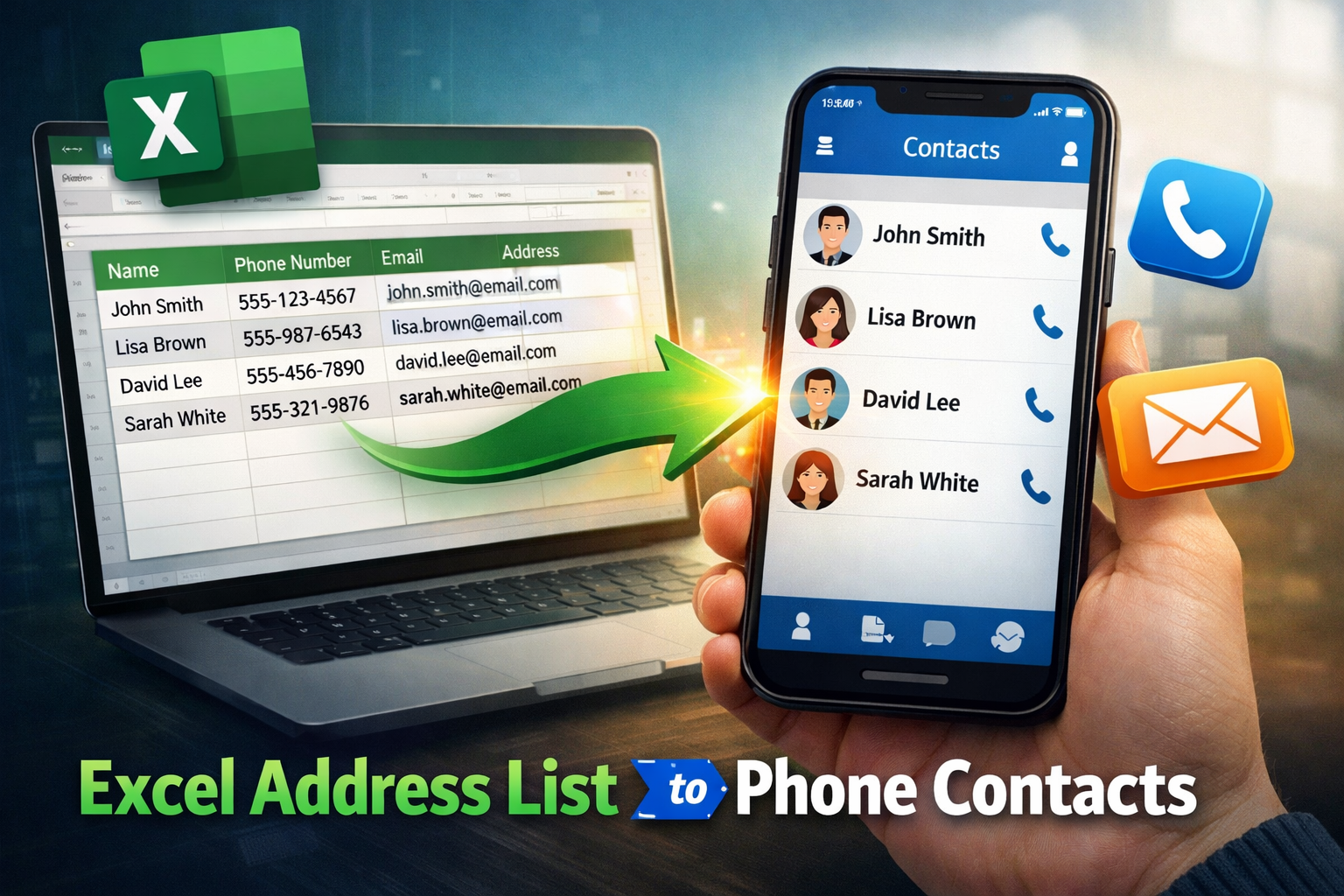
Managing contacts in Excel is common for businesses, marketers, HR teams, and even personal users. However, an Excel address list is not very useful unless those contacts are available directly on your mobile phone. This is where converting an Excel address list to phone contacts becomes essential.
In this guide, we’ll explain why users need this conversion, what challenges they face, and how to transfer Excel contacts to mobile phones using both manual and professional methods. By the end of this article, you’ll clearly know the best approach based on your needs.
Why Convert an Excel Address List to Phone Contacts?
Excel files are excellent for storing structured data like names, phone numbers, email addresses, and locations. But smartphones don’t support Excel files directly for contact storage.
Here are some common situations where conversion is required:
- Businesses storing customer or lead data in Excel
- HR teams maintain employee contact lists
- Marketing teams managing campaign contact databases
- Individuals keep backup contact lists in spreadsheets
To actually use these contacts for calling, messaging, or syncing, the Excel data must be converted into a phone-supported format, such as vCard (VCF).
Methods to Convert Excel Address List to Phone Contacts
There are two primary methods to move contacts from Excel to a mobile phone:
- Manual Method (Using CSV & Google Contacts)
- Professional Method (Using SysTools Excel to vCard Converter)
Let’s explore both in detail.
Method 1: Manual Way to Import Excel Contacts to Phone
This method works best for small contact lists and users who don’t mind extra steps.
Step 1: Prepare the Excel File
Ensure your Excel file has properly labeled columns such as:
- First Name
- Last Name
- Phone Number
- Email Address
- Address
Save the file in CSV format.
Step 2: Import CSV into Google Contacts
- Open Google Contacts
- Click Import
- Upload the CSV file
Step 3: Sync Contacts to Phone
Once uploaded, sync Google Contacts with your Android or iPhone account. The contacts will appear on your phone automatically.
Limitations of the Manual Method
- Requires internet and Google account
- Limited control over field mapping
- Not suitable for large Excel files
- Risk of formatting issues and duplicates
Method 2: Convert Excel Address List to Phone Contacts Using Automated Solution
An advanced solution offers a quick and dependable way to convert an Excel address list into phone contacts. Using an Excel to vCard Converter, users can directly convert Excel files into VCF format, which is fully supported by mobile phones, while maintaining proper field mapping and data accuracy.
This method is ideal for bulk contact conversion, as it minimizes manual effort and reduces errors. The generated vCard file can be easily imported into Android or iPhone devices, making the entire process faster and more efficient.
Steps to Convert Excel Address List Using Pro Utility
- Launch the above-mentioned tool.
- Add the Excel file containing address list.
- Map Excel columns to vCard fields.
- Choose a destination for saving VCF file.
- Click Convert to complete the process.
Features of Using Expert Solution
- Converts Excel address lists directly into phone-supported vCard (VCF) format
- Supports bulk conversion of multiple contacts in a single process
- Allows accurate mapping of Excel columns to vCard fields
- Preserves complete contact details without data loss
- Saves time by eliminating manual and repetitive steps.
Common Issues & Troubleshooting Tips
- Contacts not showing on phone
This usually happens when contacts are imported into a different account (Google/iCloud) instead of the device storage. Check the contact app’s display settings and ensure the correct account is enabled for syncing.
- Incorrect field mapping
If Excel columns are not mapped properly (for example, phone numbers mapped to email fields), contact details may appear incomplete or misplaced. Always verify column headers and preview the mapping before importing.
- Encoding or formatting issues
Special characters, country codes, or date formats may appear incorrectly due to encoding problems. Save the Excel file in a standard format like CSV (UTF-8) and keep phone numbers in plain numeric format.
- Duplicate entries after import
Duplicates often occur when the same contacts are imported multiple times. Use the phone’s built-in merge or deduplication option, or clean the Excel file by removing repeated entries before conversion.
Concluding Words!
Converting an Excel address list to phone contacts makes contact management easier and more accessible on mobile devices. While manual methods work for small files, an advanced solution ensures faster, accurate, and hassle-free conversion, especially for bulk contacts, making it the smarter choice for professional use.