About PDF Security Management
Working with secured PDF files can be quite frustrating at times especially when restrictions on printing, copying or editing do not let you work with documents easily. While many PDF applications are focused on editing and conversion, some users just want an easy way to strip permissions from PDF files they have access to.
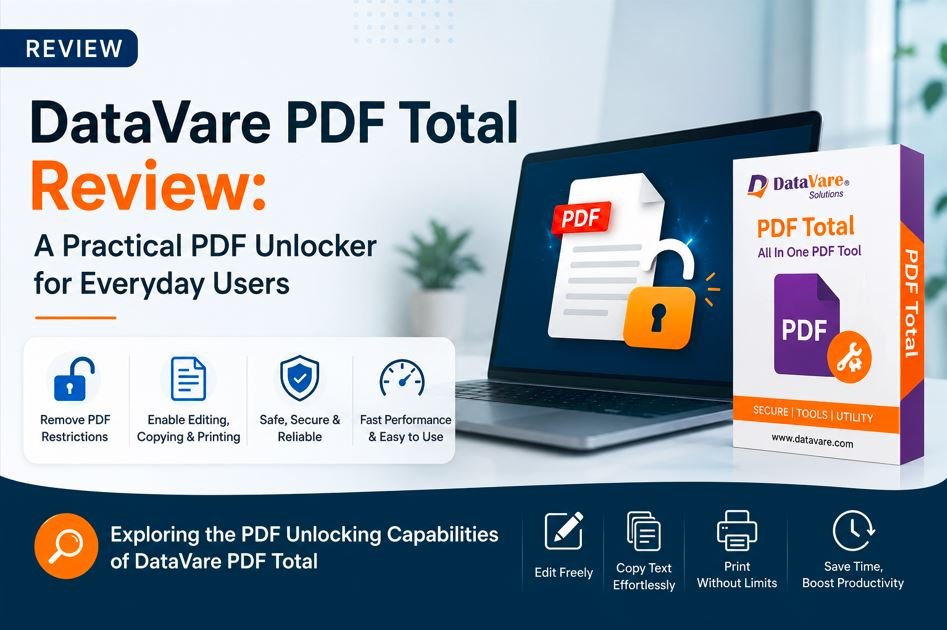
This review is dedicated to DataVare PDF Total, an all-in-one PDF management tool for Windows which includes the PDF Unlocker feature. In addition to PDF unlocking, the software offers features like PDF splitting, merging, watermarking, image conversion and security management. However, the main point of this review is to evaluate how good the unlocking module is in real-life conditions.
Salient Features of PDF Unlocker
The unlocking module is designed to overcome common PDF restrictions that limit document utilization. According to the official documentation, users can remove copy, edit and print restrictions. The software also provides options to remove password on giving the right existing password. If necessary, users can also reset passwords.
Some features to note are:
• Eliminate copy, edit and print restrictions.
• Ability to delete current PDF passwords.
• May be assigned a new password.
• No need for Adobe Acrobat, works independently.
• Supports multiple versions of PDF
• Original document formatting preserved.
Installation & User Experience:
Setting up the software is straightforward and requires only a few minutes. The main window features a simple interface layout, with all the available PDF management functions listed on the right.
The software is good for both technical and non-technical users because the unlock feature is easy to find. It does not bombard users with complex settings, so the workflow is simple and easy to follow. One of the great advantages of it is its simplicity.
How to Unlock PDF Files?
According to the official user guide, the steps are as follows:
Step 1: Download, install, and open the software on your Windows computer.
Step 2: From the main interface, select the Remove Security feature to begin the PDF unlocking process.
Step 3. Upload the PDF file that is restricted or password protected.
Step 4. Choose the desired action:
• Remove copy, edit and print restrictions.
• Remove the old password (if known).
• Add a new password if you wish to secure the file again.
Step 5. Choose the folder where the processed PDF will be saved.
Step 6. Run the process and save the unrestrained PDF file.
The entire workflow is intuitive and usually takes just a couple of clicks.
Real World Case Studies
Case Study: Getting Client Documents Ready for Internal Review
A small consulting company receives project reports in PDF format from external clients. Many of these have restrictions that stop team members from copying content into internal reports or printing documents for meetings.
The unlock feature allows the company to remove editing and printing restrictions from authorized files, and to produce unlimited copies for internal use. Users can avoid manually recreating content, helping streamline daily tasks and boost productivity.
The software maintained document formatting, images and page structure after processing during testing, which is crucial for professional documentation.
Performance Testing
For the evaluation, several PDF files with different restriction levels were processed.
Results
Small PDF files (1-10 MB)
• Processing speed.
• Successfully removed restrictions.
Medium PDF Files (10-50 MB)
• Consistent performance.
• No changes in format detected.
Large PDF Files (+50 MB)
• Processing times are slightly increased.
• Output files were not affected and were accessible.
The software behaved consistently during testing and did not generate corrupted output files.
Pros
What We Liked:
• Easy to use, even for users with limited technical experience
• Removes common PDF file restrictions effectively.
• Adobe Acrobat not required.
• Preserves original formatting.
• Most documents are processed quickly.
Includes additional PDF management utilities within the same package.
Cons
Room for Improvement
• Currently limited to Windows operating systems.
• Does not read corrupted PDF files.
• Where applicable, you must enter the current password to remove a password.
Who is it for?
This software is appropriate for:
• Office professionals working with secured PDF reports.
• Legal and administration teams worked on documentation.
• Students and researchers working with restricted PDFs.
• Small business requiring a simple desktop PDF utility.
Users searching for a PDF unlocking solution that is dedicated and easy to learn will find the simple design appealing.
Quick Look
User Friendly: 4.8/5
Unlock Performance: 4.7/5
User Interface: 4.6/5
Processing Speed: 4.7/5
Value for Money: 4.6 out of 5
Overall Rating: 4.7 out of 5
Final Decision
The DataVare PDF Unlocker module of its PDF Total Utility is providing exactly what many users need, a simple way to remove PDF restrictions and regain access to documents they are authorized to use. Easy process, friendly interface and reliable results.
The app has a lot of other features to manage PDF files, but the unlock feature is the best because it is easy to use and works consistently. This utility is a convenient and reliable solution for Windows users who often encounter restricted PDF files.
Final rating: 4.7 out of 5 stars
A trustworthy PDF unlocking tool that easily and quickly removes restrictions without the need for Adobe Acrobat.