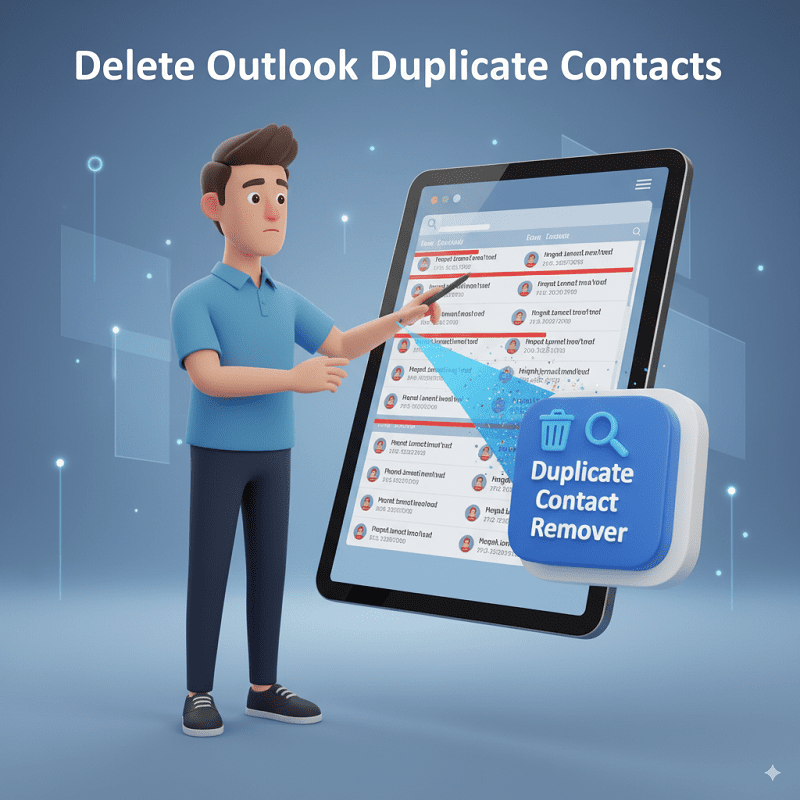
Microsoft Outlook is one of the most popular applications for managing emails, calendars, and contacts. However, your contacts folder is susceptible to becoming messy with duplicates over time. This generally happens when you have imported contacts from multiple accounts, synchronized with smartphones or mobile devices, or restored contacts from backup files. Duplicate contacts not only clutter your address book but also cost time when trying to find the correct person. Fortunately, Outlook offers you the choice of manual or automatic remedies to fix the matter.
In this blog, we are going to discuss the manual method to remove duplicates, and later introduce you to a professional solution, the Duplicate Remover tool.
Why Do Duplicate Contacts Appear in Outlook?
There are many reasons duplicates might appear in your Outlook address book:
- You experienced synchronization errors between system devices and Outlook.
- You imported duplicate PST files multiple times without checking duplicates.
- You deleted accounts that had overlapping contacts.
- You restored old backups, which brought in the contacts again.
No matter how the duplicates appeared, removing duplicates in Outlook is vitally important for maintaining a clean and organized list of contacts.
Manual Method to Remove Duplicate Contacts:
If you only have a few duplicates, it is possible to use Outlook built-in features to clean them up manually.
Step 1: Change to List View
- Open Outlook and select People (Contacts).
- In the row of View, select Change View, and then select System or List.
- This view enables an easier side-by-side comparison of contacts.
Step 2: Survey Duplicates
- Scroll down your list to determine if you see numerous names, phone numbers, or emails that are the same.
- You can also use the Search bar above your contacts to see multiple duplicates of the same contact.
Step 3: Delete Contacts
- Open each duplicate in order to compare the information listed.
- If one contact does not have fields completed, copy the information into the complete contact.
- Right-click on the duplicate contact and select Delete Contact.
Deleting duplicate contacts from an Outlook list with hundreds of contacts has proven an effective method for a smaller address book, but deleting contacts manually becomes tedious and time-consuming. That’s where an automated tool saves the day, time, and effort.
Automatic Method: Delete Outlook Duplicate Contacts, and More
If your contacts list is large, removing duplicates manually is not practical, and this method is risky for your original emails, data, etc. See this, one of the most reliable solutions is the TrustVare Outlook Duplicate Removal tool. It is a professional software designed to scan your Outlook data files (PST/OST) and detect duplicate items across contacts, emails, calendars, notes, and more. For our purpose, it’s especially effective at cleaning up duplicate contacts without risking data loss. It will support all Windows OS versions like 11, 10, 8.1, 8, 7, and aslo this tool supports ANSI and UNICODE.
Key features of the Tool:
Wide Compatibility: Capatible with all Microsoft Outlook versions, including the latest.
Support for multiple duplicate criteria: detect duplicates in Outlook based on different fields you can use, such as a name, email address, or create your own custom filter.
Folder and File Support: remove duplicates from selected folders and entire PST/OST files.
Preview Option: You can preview duplicate PST items before removing them, maintaining control over what gets deleted.
Safe and Secure: ensures no corruption or loss of data and preserves the original formatting and details.
Batch Processing: save time processing multiple duplicate PST/OST files at once.
User-Friendly Interface: designed for both technical and non-technical users with no requirement to have technical skills.
How to Use this tool?
Install and Launch – Download the tool on your system.
Add Outlook Files – Load the PST or OST file containing your contacts.
Choose Duplicate Criteria – Select which fields (e.g., name, email, contents, notes, etc) should be used to identify duplicates.
Select Folders – Pick the Contacts folder (or multiple folders, if needed).
Preview Duplicates – Review the duplicates PST detected by the tool.
Remove or Export – Delete duplicates permanently or save the cleaned file in a new PST.
Why Choose This software?
Saves Time - You can clean up thousands of duplicate Outlook contacts in just minutes.
Accurate - No duplicate Outlook contacts will be overlooked.
Flexible - You can set criteria on how duplicate Outlook contacts are detected.
Safe and secure - Your data is kept safe during this process.
Conclusion
Duplicate contacts can be a source of unwarranted clutter inside the Outlook application and can inhibit your productivity. While they're manageable using Outlook's manual methods when the lists are smaller, this is not practical for heavier users or businesses with larger contact lists. This tool offers a more intelligent solution by deleting duplicates automatically while remaining very precise. With user-friendly functionality and advanced features built into the tool, it will help keep your Outlook organized and working efficiently. So, if you face the issue of duplicate Outlook contacts, then try Outlook Duplicate Removal, and you'll see it is the easiest and fastest way to keep an organized and clear Outlook contact list.
Gallery
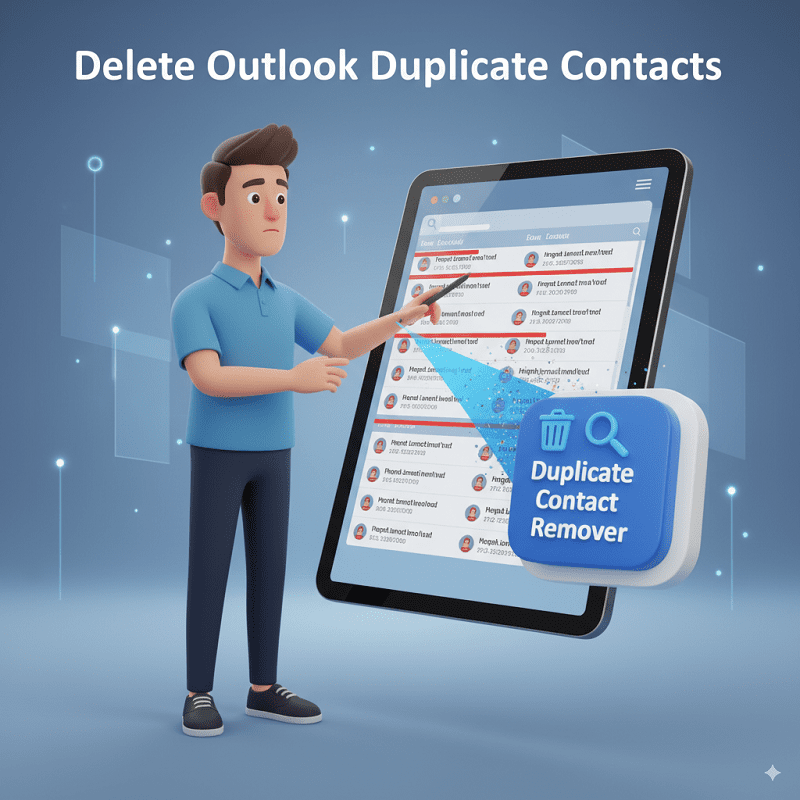
Delete Outlook Duplicate Contacts: Manual & Automatic Methods
Abernathy-
5.0Ratings
- 1+Reviews
- 0 + Followers
Opening Hours
| Monday | 4:40 pm - 4:21 pm |
|---|---|
| Tuesday | 11:34 pm - 4:21 pm |
| Wednesday | 4:25 pm - 4:21 pm |
| Thursday | 4:27 pm - 4:21 pm |
| Friday | 4:25 pm - 4:21 pm |
| Saturday | 4:27 pm - 4:21 pm |
| Sunday | 4:26 pm - 4:21 pm |
Recent Questions and Answers
Have a question? Ask away!
Related Listing

META Bodywork

Requirements traceability matrix

Book 2 Publish

Melinda Robles
Clear and Easy-to-Follow Guide