Introduction
Have you ever needed to access old Outlook emails but found that the original email account was no longer available? This usually occurs when employees leave an organization, Exchange accounts are terminated, or Outlook profiles get corrupted. OST files carry synced mailbox information, which is associated with their original profiles in Outlook. This means the data is hard to access when the account connection is lost.
Converting an OST file to PST format is one technique to make mailbox information available in a separate Outlook data file. But the conversion method does take a little preparation, especially with huge or unavailable files. Let's check the various approaches, their practical needs, and the key concepts users should understand before data conversion.
Converting an OST file to PST format is one technique to make mailbox information available in a separate Outlook data file. But the conversion method does take a little preparation, especially with huge or unavailable files. Let's check the various approaches, their practical needs, and the key concepts users should understand before data conversion.
Important Considerations Before Converting OST to PST
Users need to check some important details before the conversion to avoid unexpected problems and be sure of the accuracy of mailbox data.
- OST File Status Check: Verify that the source OST file is accessible and readable before choosing a conversion technique.
- Ensure Enough Storage Space: Ensure you have enough disk space for the OST file and the PST file that will be created from the OST.
- Keep Original Backup: Always keep a backup of the original OST file until the converted PST data is successfully confirmed.
Why Do Users Need to Convert OST Files to PST?
Understanding the purpose of conversion makes it easier to select the right approach. Here are some common situations:
- Employee Account Closure: Organizations can want to maintain mailbox information once an employee’s Exchange account is disabled.
- Relocating to a Different Computer: Users can want to move previously saved Outlook emails to a different workstation.
- Accessing Old Conversations: Archived business chats can be required for project evaluations, customer interactions, or record keeping.
- Less dependency on Exchange: The exported information is accessible without relying on the original mailbox connection due to the separate PST copy.
- Retrieving Mailbox Information: If an Outlook profile stops working, users can need another method to retrieve information from the existing OST file.
Method 1: Convert OST to PST Through Outlook
- Outlook's export capability is a useful place to start if the OST file is linked to an active Outlook profile and the mailbox data is available.
Do the following:
Open Microsoft Outlook and check that the right mailbox folders exist. - In the File menu, select Open & Export.
- Choose Import/Export to see the export options.
- Click Next after selecting Export to a file.
- Select Outlook Data File (.pst)
- Select the mailbox or individual folders that you want to archive.
- If you want subfolders, check Include Subfolders.
- Choose a destination and finalize the export.
Note: This method exports accessible mailbox data. There is no simple method to convert all individual or orphaned OST files.
Limitations of Outlook-Based Conversion
The combined export method depends on a working Outlook environment. If the Exchange account is removed or the OST file is disconnected from the original profile, then Outlook cannot show the essential mailbox information.
Another problem is selective data access. Some mailbox items cannot be available locally because they were never synced. Exporting large mailboxes could also take a lot of time. So users should check the synchronization status and the existence of the relevant folders before continuing.
Method 2: Use a Professional OST Conversion Tool
If Outlook is unable to access the required OST file, then users can try out specialized conversion software. This software is meant to read OST files independently and save the mailbox contents in formats like PST.
For this purpose, ViceVersa OST to PST Converter has a special approach to convert OST mailbox data to PST format. It is something that users who have to deal with disconnected OST files or handle mailbox data outside the original Outlook profile can consider.
Before you select a tool, check out the file scanning capabilities, preview options, supported OST conditions, output formats, and the ability to maintain attachments and folder structure. These features are particularly important when dealing with business mailboxes or historical email archives.
Steps to Convert OST Files Using a Professional Tool
This is how a standard OST conversion application works:
1. Add Source File: Open the application and browse to the OST file.
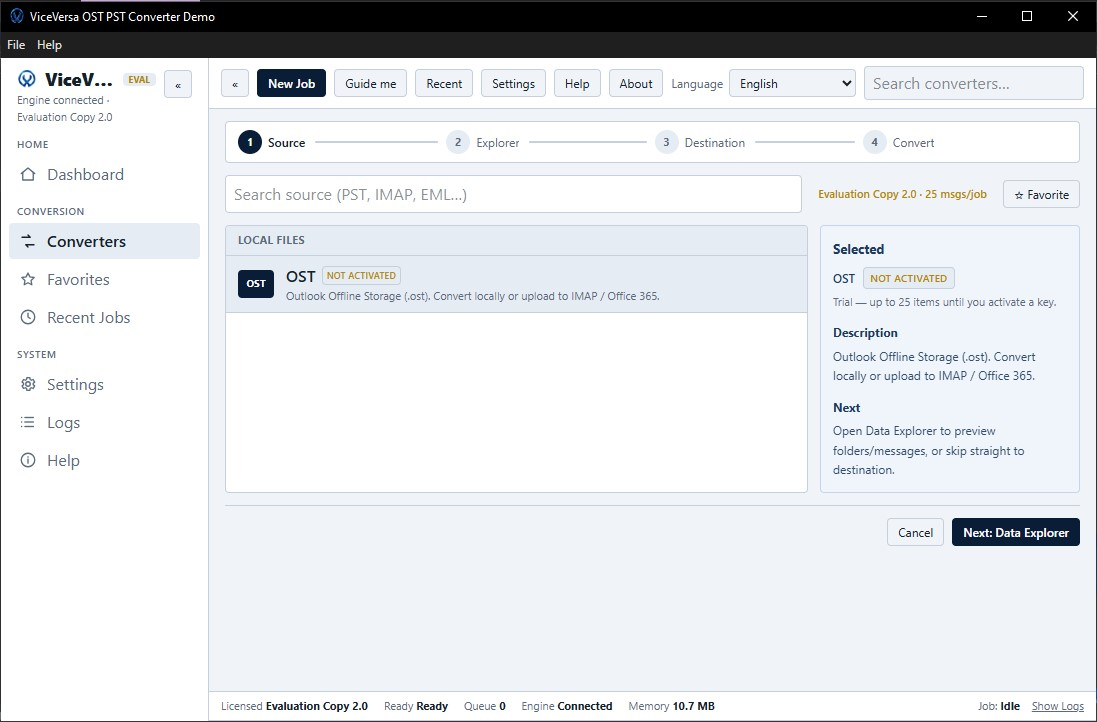
2. Scan Mailbox Data: Let the software scan the file and detect the mailbox items that it can access.
3. Preview the Contents: Check out the presented folders and messages and select the desired information.
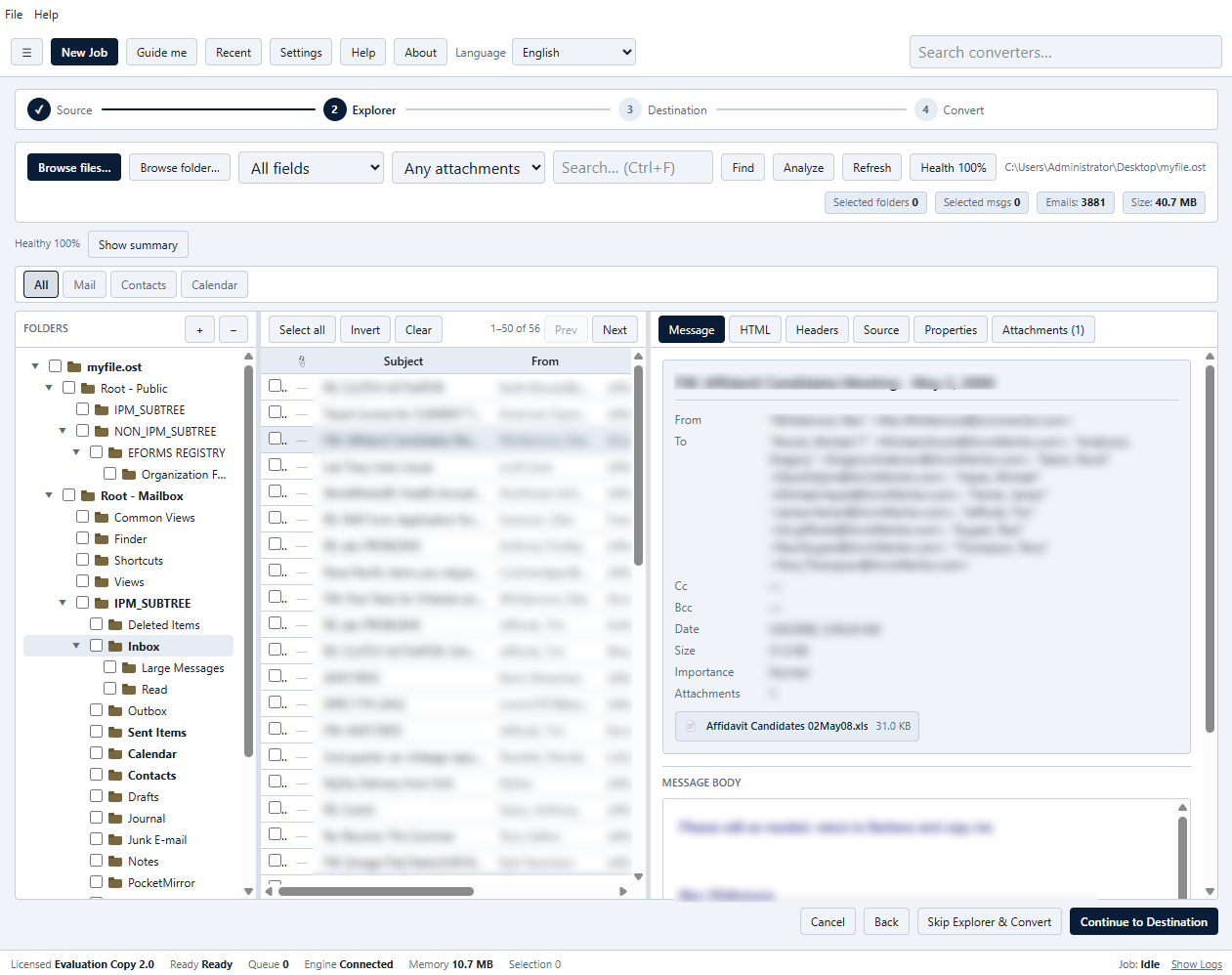
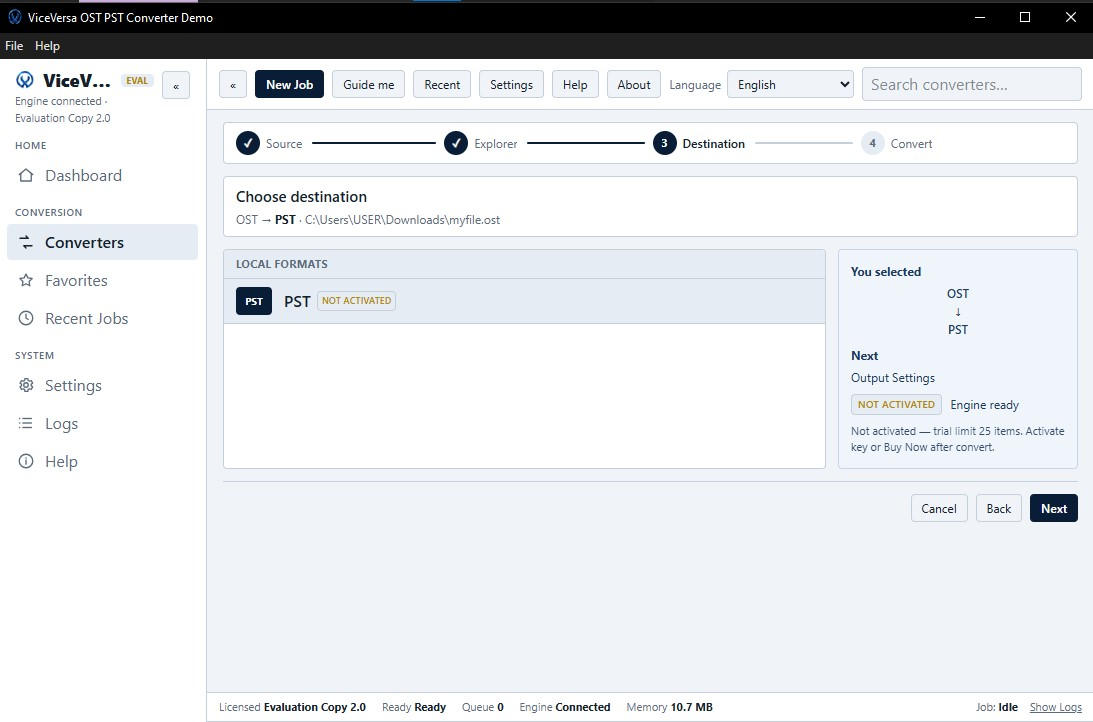
4. Select PST Format: Select PST format as the destination file from the many save options.
5. Select where to save it: Make a new folder or drive that has sufficient free space.
6. Start the conversion: Hit the Start Conversion button and let the application process the data you have indicated.
7. Check the result: Open the produced PST file in Outlook and examine relevant folders and attachments.
1. Add Source File: Open the application and browse to the OST file.
2. Scan Mailbox Data: Let the software scan the file and detect the mailbox items that it can access.
3. Preview the Contents: Check out the presented folders and messages and select the desired information.
4. Select PST Format: Select PST format as the destination file from the many save options.
5. Select where to save it: Make a new folder or drive that has sufficient free space.
6. Start the conversion: Hit the Start Conversion button and let the application process the data you have indicated.
7. Check the result: Open the produced PST file in Outlook and examine relevant folders and attachments.
Conclusion
OST to PST conversion is helpful when you need to migrate, back up, or access Outlook mailbox data outside the original Outlook profile. The export option to Outlook will be useful if the mailbox is available, but for disconnected OST files, a separate conversion application could be better. Choose the option that best suits your needs by considering file status, free space, mailbox size, and data requirements. A cautious approach will help to make sure that users will not miss any information and that the conversion process will be easier to handle.
Frequently Asked Questions
1. What is the primary difference between PST and OST files?
OST files are synchronized mailbox data associated with an Outlook profile, while PST files are portable Outlook data files that can be stored and accessed separately.
2. Is there a way to convert an OST file if the Exchange server isn't available?
If the required data is available in the OST file, then an appropriate third-party conversion tool could process it.
3. Does the size of the OST file affect the conversion process?
Yes, large OST files require extra storage space, processing time, and system resources.
4. Is it necessary to delete the original OST file after conversion?
No. Back up the original file until you have examined the PST file process completely.
5. Can I choose selected folders to convert instead of the whole mailbox?
Some conversion tools provide selective folder conversion, so users can only handle the mailbox information they require. Before you begin, check out the options accessible in the software.
Tags : OST to PST Converter